

Using CC65 as a C compiler is wonderful but for the BBC Micro and Master it has been a pain to get work. Even though the efforts of a couple of community members are extremely promising, I just couldn’t get very far (as yet).
I was thrilled to find out that the amazing VBCC compiler that I used previously for Amiga and Atari ST has good BBC support, along with a whole bunch more 6502 based targets.

On Windows you just need to ensure the environment variables are set. See at the end of the page for how to create your BBC disk and run your programs.
set VBCC=C:\Users\chrisg\vbcc6502\vbcc6502_win\vbcc

set PATH=%VBCC%\bin;%PATH%
Unfortunately the pre-compiled binaries and all the instructions for compiling are for Windows and Linux because the creator of VBCC does not have access to a Mac.
Following the Linux/BSD instructions on my Mac was becoming too much of a long-winded failure, so I first tried Parallels which worked but is not something I can recommend to everyone, and then I had a brainwave.
We are going to cheat by using a lightweight Docker container via OrbStack that will virtualize Linux and run the already working binaries!
Install and Run OrbStack via Homebrew
OrbStack is free for personal use and unlike Docker Desktop it runs a lightweight Linux virtual machine. While it is better to run Arm like for like, as I am using x86_64 images on Apple silicon we will need emulation. This is fine for things like CLI toolchains, the performance impact will not be noticable.
If later grab we use an ARM64 Linux vbcc bundle or build vbcc/vasm/vlink from source for ARM64, we can always switch to --platform linux/arm64 for native speed.
brew install --cask orbstack

You can now follow the tutorials and edit the code right in your web browser with the Online Retro IDE
– No downloads, configuration, etc necessary, and it is free!
What that means
Homebrew casks install GUI apps into /Applications and set up their services. If you install only the CLI formula, you get binaries without the app that starts the Linux VM. Using --cask ensures we get the full thing.
Complete and Test OrbStack
First we need to check the application/gui completes install:
open -a OrbStack
We can test now that the CLI works:
docker version
Docker Hello World:
docker run --rm hello-world
(you might need to supply your mac password)
If this prints our message, we know Docker is ready to rock.
Installing VBCC
We need a place to put our project:
mkdir -p ~/vbcc-6502 && cd ~/vbcc-6502
Download the 6502 zip file and copy it to our new directory:
cp ~/Downloads/vbcc6502_r4p2.zip .
In the same directory, create our Dockerfile instructions that will generate our Linux container:
nano Dockerfile
Here is the contents of the file:
FROM --platform=linux/amd64 debian:stable-slim

RUN apt-get update && apt-get install -y --no-install-recommends \
    ca-certificates unzip make gcc libc6-dev \
 && rm -rf /var/lib/apt/lists/*

# Put vbcc6502_r4p2.zip next to this Dockerfile before building
COPY vbcc6502_r4p2.zip /tmp/vbcc6502_r4p2.zip

RUN mkdir -p /opt && \
    unzip -q /tmp/vbcc6502_r4p2.zip -d /opt && \
    # Try the known layout, otherwise auto-detect
    if [ -d /opt/vbcc6502/vbcc6502_linux/vbcc ]; then \
      ln -s /opt/vbcc6502/vbcc6502_linux/vbcc /opt/vbcc; \
    else \
      VBCCDIR="$(find /opt -type d -name vbcc -print | head -n1)"; \
      ln -s "$VBCCDIR" /opt/vbcc; \
    fi && \
    ln -s /opt/vbcc/bin/* /usr/local/bin/ && \
    rm -f /tmp/vbcc6502_r4p2.zip

ENV VBCC=/opt/vbcc
ENV PATH="/opt/vbcc/bin:${PATH}"

WORKDIR /src
CMD ["/bin/bash"]
Next we instruct Docker to build:
docker buildx build --platform linux/amd64 -t vbcc-6502:amd64 .
Testing VBCC
Now we need a hello.c source file:
#include
int main(void)
{
    puts("Hello, 6502");
    return 0;
}
The following instruction will run the vbcc compiler through the virtual machine we set up. I specified C64 and to output a .prg, which we can run with Vice or any other C64 emulator:
docker run --rm --platform linux/amd64 -v "$PWD:/src" vbcc-6502:amd64 bash -lc \ 'vc +c64 -O2 hello.c -o hello.prg'

For BBC we simply change the target and output filename:
docker run --rm --platform linux/amd64 -v "$PWD:/src" vbcc-6502:amd64 bash -lc \ 'vc +bbc -O2 hello.c -o hello'
Running BBC Programs
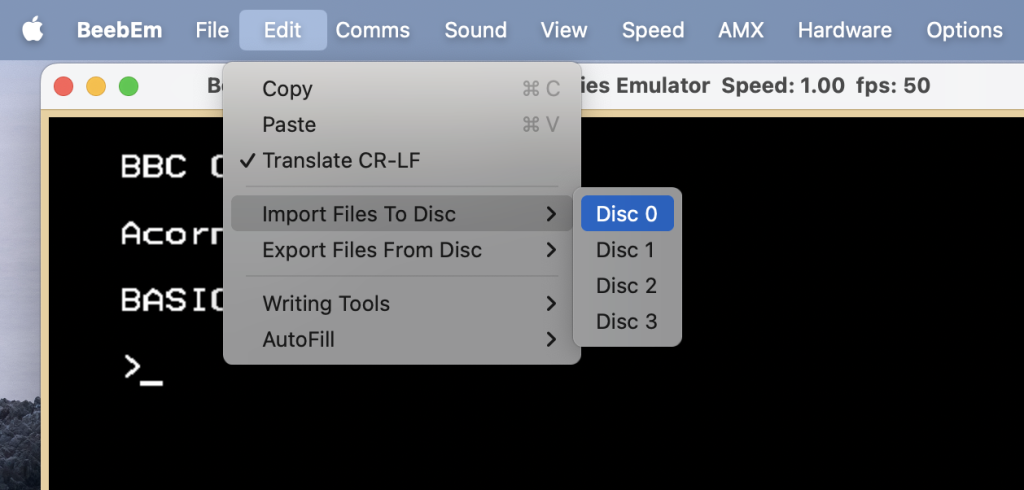
I don’t know of a BBC emulator that can run programs from the command line like Vice can. Fortunately, BeebEm can create BBC disk files:

After you have a disk created, you can import your new program to the disk:

*CAT to list the files on your disk
Once your disk has your file included then you can run it and see the fruits of your labours!
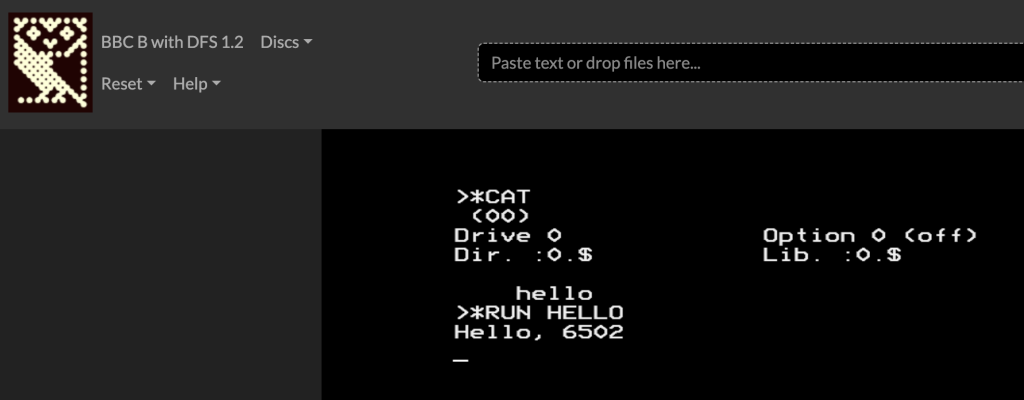
*RUN FILENAME to run your program
You will need to add fresh versions to the disk each time you recompile but you can keep using the same disk at least.
My browser-based BBC emulator is based on JSBeeb which means you can upload your disk and run it there too. I will work on creating a utility to either skip the disk creation or make it easier to create and run a disk without needing BeebEm each time.
Optional .dockerignore
We can set an ignore file to keep builds fast:
.git
build
dist
node_modules
*.d64
*.prg
*.img
*.zip
Makefile for Compiling Convenience:
By default the compiler command is a bit wordy when we add in the docker stuff so let’s make things easier.
Here’s a flexible Makefile that accepts parameters for target, input, and output. It works with our Docker image and defaults to sensible values.
# vbcc 6502 via Docker
IMAGE     ?= vbcc-6502:amd64
PLATFORM  ?= linux/amd64

# Overridable parameters
TARGET    ?= c64          # e.g. c64, bbc, vic20, apple2r, nes, atari, x16
SRC       ?= hello.c      # one or more sources, space-separated
OUT       ?= hello.prg    # output filename
OPTS      ?= -O2          # extra compiler options, e.g. -g -O3

VC        ?= vc           # vbcc driver in the bundle

.PHONY: build list-targets shell clean version

build:
	@docker run --rm --platform $(PLATFORM) -v "$$(pwd):/src" $(IMAGE) bash -lc '$(VC) +$(TARGET) $(OPTS) $(SRC) -o $(OUT)'

list-targets:
	@docker run --rm --platform $(PLATFORM) $(IMAGE) ls /opt/vbcc/config

shell:
	@docker run --rm -it --platform $(PLATFORM) -v "$$(pwd):/src" $(IMAGE) bash

version:
	@docker run --rm --platform $(PLATFORM) $(IMAGE) bash -lc '$(VC) -h || true; vbcc6502 -h || true'

clean:
	@rm -f $(OUT)
This allows us to set the input, output, target and any other options without editing the make file each time.
The line .PHONY: build list-targets shell clean version marks our five targets as phony, so their recipes always run when you call them. Otherwise it would see existing files in the filesystem and think nothing needs to be done.
How to use the makefile
# defaults: c64, hello.c → hello.prg
make build

# change target
make build TARGET=bbc OUT=hello-bbc

# multiple sources
make build TARGET=c64 SRC="main.c util.c" OUT=demo.prg

# pass extra options
make build TARGET=apple2r OPTS="-O3 -g" OUT=game
More Complete Hello World .C
You might notice with earlier BBC examples that the machine freezes after our program runs.
Good news is on the BBC target you have the option of using +bbcr if you want the program to return the user back to BASIC after it completes.
In the following example Hello World! will not be visible after the code finishes because we clear the screen using a BBC “VDU” command (the ASCII character 12), but you will see “Woot!”.
#include
#include
int main(void) {

        // output text
        printf("Hello World!");

        // clear screen using vdu
         __vdu_sequence(1);
        putchar(12);
        __vdu_sequence(0);

        // this will appear on the new screen
        printf("woot!\n\r");

        return 0;

}
There are many more VDU commands which will come handy in future projects.
What’s Next?
Now I have a working compiler for BBC projects I can start porting my working C Dungeon game over.
First I will need to develop a conio.h which is the library I use for text output. I will also look at tools for more easily either running compiled code directly or adding/creating/updating BBC disks. Watch this space!
 Developing a Retro-Roguelike Game for Multiple Platforms in C