
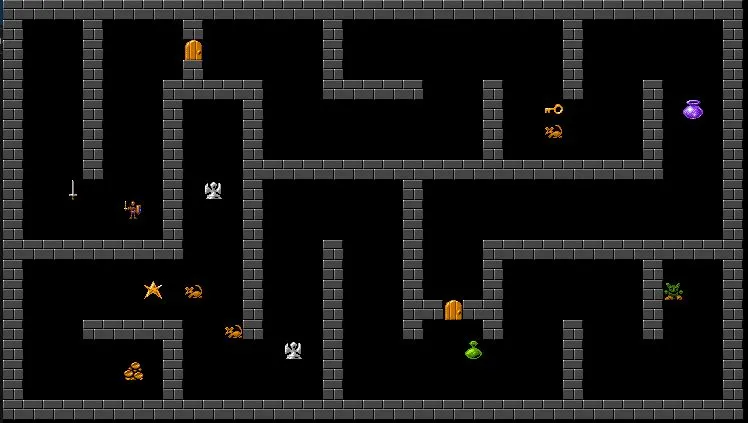
When I wrote about adding graphics to the C version of my Rogue-Like game, I said I was trying out Raylib.
Raylib is a framework or SDK that allows not just sprites and other graphics, but way more features than I even know about. It’s that comprehensive.
Yet, it still requires substantial coding, and in C.
Remember, I chose C because this game is primarily targeted at retro game systems, and C is considered low-level today but it is still high-level compared to assembly, and especially compared to essentially starting from zero in assembly for multiple different architectures.
A friend got me wondering how much different the workload would be to recreate the C game in something easier and more intuitive such as Pygame. So I sat down and started.

Why not AI?
Before we get into my test, you might wonder why I didn’t just assign the task to a large language model.
Correct me if I am wrong (please!) but I do not think the current crop of AI tools can cope with codebases of multiple library files each with a lot of code. Routines, yes, but full programs?
It would be magical if I could just say “Convert this game” and give it my C, I just haven’t seen it manage that scope of work.
Pygame Maze Tests

The first step was to replicate the maze generation code because this is what makes the game fun to test and saves me from having to manually design levels.
I’ve done this before so really the task was to make it reflect the design choices I had arrived at in my current game.
Essentially it carves out pathways, selecting the direction randomly, and backtracking when it hits a dead-end.
Due to the fact the original game is designed for a 40×24 character screen, I settled on a rough approximation in terms of pixel dimensions. It’s not ideal (“responsive” would be better), but it allowed me to move ahead.
My maze.py then became the module or library for the game itself, just adding in a check to see if it was being run as a script or imported:
def main():
    pygame.init()
    screen = pygame.display.set_mode((MAP_WIDTH * TILE_SIZE, MAP_HEIGHT * TILE_SIZE))
    pygame.display.set_caption("Maze Game")

    carveMaze()
    placePlayer()

    running = True
    while running:
        for event in pygame.event.get():
            if event.type == pygame.QUIT:
                running = False

        screen.fill((0, 0, 0))
        draw_map(screen)
        pygame.display.flip()

    pygame.quit()

if __name__ == "__main__":
    main()
Characters -> Graphics
Now I had to decide, do I draw the graphics first or get the game working?
I side-stepped that decision and generated bitmaps for each ASCII character instead:
# Create placeholder images for characters
def create_placeholder_image(char, filename):
    font = pygame.font.SysFont('Roboto', TILE_SIZE)
    image = pygame.Surface((TILE_SIZE, TILE_SIZE))
    image.fill((0, 0, 0))
    text_surface = font.render(char, True, (0, 255, 0))
    image.blit(text_surface, (0, 0))
    pygame.image.save(image, filename)
This made little PNG files that look like they were rendered by a terminal emulator:

Movement Problems
This is where I hit a snag.
Pygame doesn’t have a “wait for a keypress” feature as far as I can tell. It’s event-based, which is hardly surprising given it is mainly used for action games.
My game, though, is turn-based as is common with dungeon-crawler rogue games. The idea is you can think through your next move rather than succeed on reaction time and quick thinking.
To get around this I made the code wait using a state variable:
# Main game loop
def game_loop(screen, images):
    global player_x, player_y, old_x, old_y, direction_x, direction_y, health, score, magic, sword, weapon, keys, idols, room, in_play, run
    pressed = True
    while run:
        for event in pygame.event.get():
            if event.type == pygame.QUIT:
                run = False
            elif event.type == pygame.KEYDOWN:
                pressed = True
                if event.key == pygame.K_w:
                    move_player(0, -1)
                elif event.key == pygame.K_a:
                    move_player(-1, 0)
                elif event.key == pygame.K_s:
                    move_player(0, 1)
                elif event.key == pygame.K_d:
                    move_player(1, 0)
                elif event.key == pygame.K_q:
                    in_play = False
                    run = False

        if pressed:
            move_enemies()
            screen.fill((0, 0, 0))
            draw_map(screen, images)
            pygame.display.flip()
            time.sleep(0.1)
            pressed = False
Prettier Graphics
Now I could move my guy around the screen and had some very basic enemy movement and attack logic, I could start getting a feel for how it might play.
Rather than stick with the faux ASCII characters, I loaded each PNG up into Asperite and created quick and dirty game graphics.
Part of me was thinking I could use the bitmaps for 16 and 32 bit systems, so I didn’t go crazy with the number of colours I have available in a PNG.
Plus, of course, this is meant to have a retro feel, not AAA aesthetic!


I can use these regardless of the approach I finally take, but I think the key to being properly satisfied with my game art will be selecting a better palette.
Conclusion
So, is this approach better?
There is a lot of work still to do if I am going to recreate the game in Python. This was all to just get a guy moving around a maze, so there is still no game there yet.
Ideally, Raylib will allow me to simply switch out rendering to the terminal with rendering to a bitmap screen and that would allow me to keep tweaking the mechanics without lots of rewrites, but the practicality of that remains to be seen.
Still, not a wasted effort because I learned more about Pygame, which will certainly come in handy, and I sat down and created first draft graphics which I can use for whichever method I go with!
 CC65/CL65 Ram Optimization