

The R36S portable retro games console is pretty great right out of the box, but to really get the best out of it requires a bit of effort and know-how, so I thought I would share what I have learned so far.
First, the main tip that you probably know but is worth reiterating …
Get a New SD Card!
At some point the SD card that comes with your device is going to give out. They are cheap unbranded cards with a short life. This isn’t a knock on the product, just a fact of life with any SD card but accelerated by them being made to an aggressive price point.
Good quality branded SD cards, such as SanDisk, will last you a lot longer and be more efficient so it is worth the investment even if the SD card turns out almost as much to purchase as the device itself. In some forum threads I saw people having problems with certain brands of card but my OS card in Slot 1 is a basic SanDisk 16GB, nothing fancy, and it is absolutely fine …
You don’t necessarily need to get a new card right away, and you can by all means wait until SD cards are on discount (eg. Black Friday), but if you are going to wait, at least take a backup right now. There are downloads out there with full backup copies of the bundled R36S files, but who knows if they will still be there when you need them.
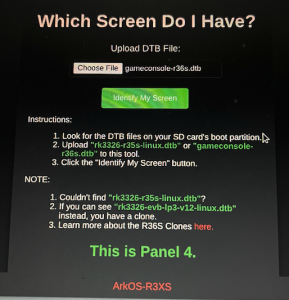
At the very least, take a copy of your .dtb files (“device tree blob”/ .dtb) in the BOOT disk partition. There are at least 5 different screen variations so it is a good idea to have your specific files handy.
Ideally I recommend having an operating system SD card in slot 1, and games (“ROMS”) in slot 2. This extends the life of your SD cards by splitting the activity between two disks rather than one.
Where to Get Games (“ROMS”)
For obvious reasons I am not going to link to any game files but the Internet Archive has an excellent retro games preservation initiative where a lot of games are preserved. Several groups work to point the community at curated links and lists of bundles and ROMs too.
ArkOS Upgrade – Update the Operating System
When your R36S arrives it will usually come with the latest release of the official ArkOS operating system. The problem is that release is quite old, and the community has developed a better version with a lot of optimizations built-in.
If you are going to overwrite your stock card then first take a backup of not just the games but the boot partition files too!
You will need an SD card writing program such as Raspberry Pi Imager, Rufus or Etcher. Next you will need to download the operating system SD card image:
Download and Unzip the ArkOS 2.0 (11072025) Disk Image
You will need 7zip or a compatible program to unzip the file. Once extracted it will be around 8GB in size but I recommend at least a 16GB SD card for the OS.
First Boot and Switching to 2-Disk Setup
On first boot there will be a lot of stuff happening and it might feel like it is taking too long. Just be patient as it needs to set up partitions and folders etc. Eventually you should see an ArkOS Logo.
Once at the menu, insert a blank microSD card into the second slot and go to Options > Advanced > Switch to SD2 and it will prepare your blank SD with the appropriate folders to drop your games into.
Hotkeys and Features
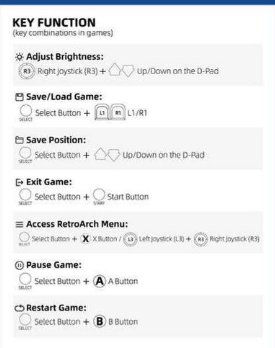
| Global Hotkeys: | |
|---|---|
| FN and Dpad Up | Brightness Up |
| FN and Dpad Down | Brightness Down |
| FN and Volume Up | Brightness Up |
| FN and Volume Down | Brightness Down |
| FN and Power | Safe shutdown |
| Power (Short Press) | Put device to sleep |
| Retroarch Hotkeys: | |
|---|---|
| FN | Fast Forward |
| FN and X or L1+R1+Start+FN | In-game Menu |
| FN and A | Pause current game emulation |
| FN and B | Reset current game emulation |
| FN and R1 | Save state or current game |
| FN and L1 | Load state of current game |
| FN and Start | Exit Game/Retroarch |
| Select+Start | Double-Press to quit current game |
Making it Yours
As with any computing/IT device, I recommend going through the options and tweaking/configuring to your liking.
A lot can be changed all at once by selecting a theme, but there are more granular options too such as which systems you wish to display or hide.

Updating, Scraping, and Copying Over Wifi
Despite not having Wifi on board, there are a lot of things the R36S can do once connected to the internet.
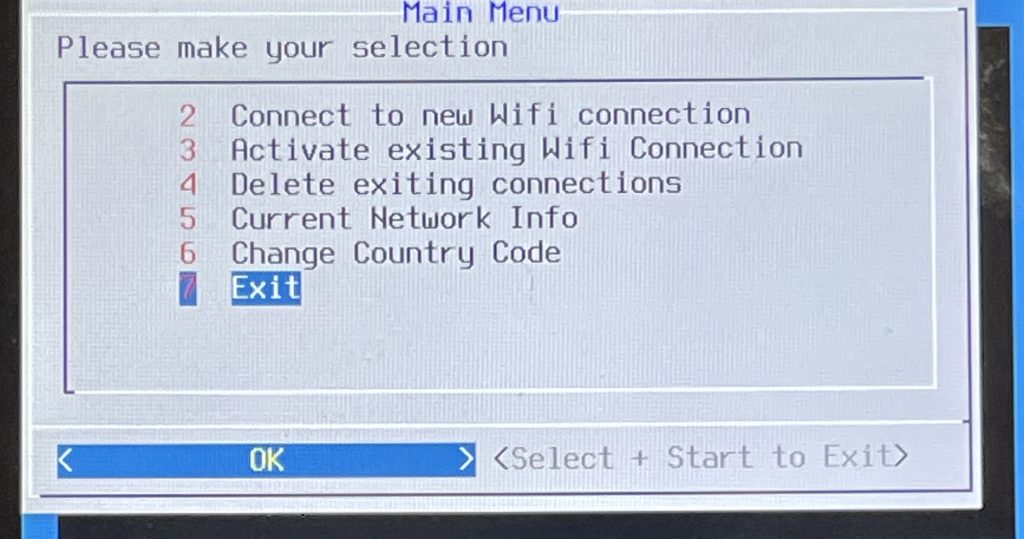
You will need either a USB Wifi dongle (using the OTG USB-C port), or to be tethered to your Android smart phone.
Once connected you can keep your OS up to date and also download cover art and thumbnails from the Screen Scraper membership site.
Did you know your R36S can even share its disks over the network? It will likely still be quicker to use an SD card reader, but it is a cool option to have on hand nevertheless.
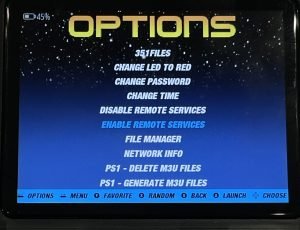
In Options enable Remote Services. When you view your network you should see your device.

Once your R36S is sharing, you should see folders within the device for ROMS1 and ROMS2, depending if you are using a one or two SD card setup.

R36S Problems? Troubleshooting
There is an excellent troubleshooting resource for the R36S device itself here.
Blank Screen
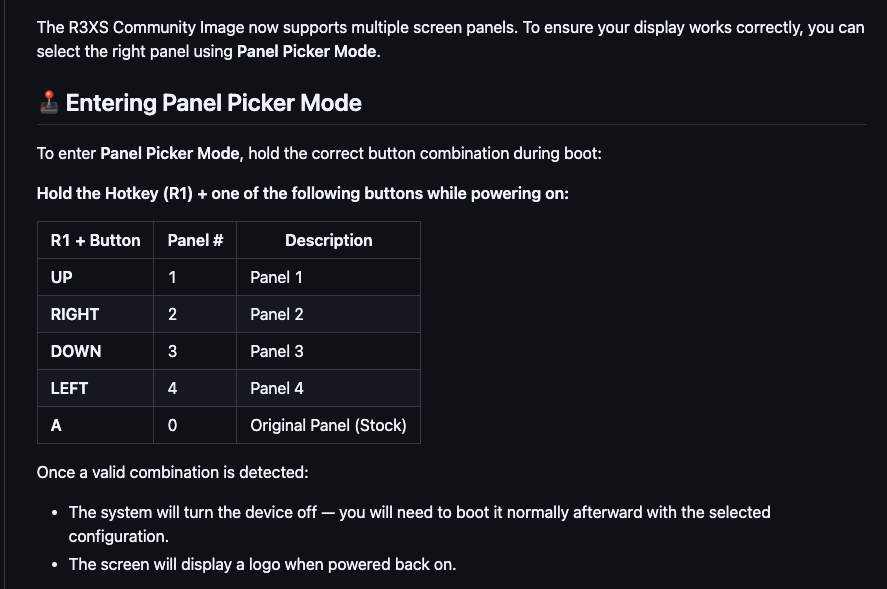
If you get a blank screen then using the community OS you can use the “panel picker” feature, but it might just be a case of copying the .dtb files you took a backup of earlier.
Boot Issues
Most of the problems seem to be caused by bad or corrupted SD cards and, unfortunately, poor quality clones.
Wrong/Warped Display / Set Aspect Ratio
By default, most of the games will be displayed in a 4:3 aspect ratio, which will stretch many retro games, especially those from the arcades.
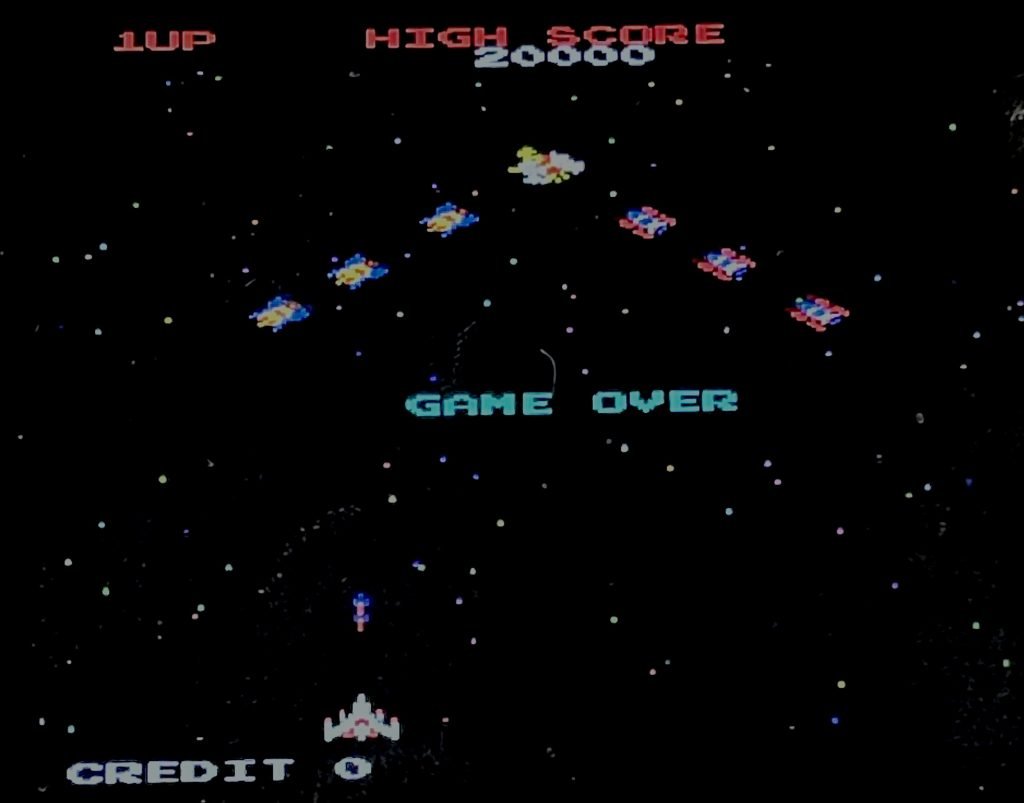
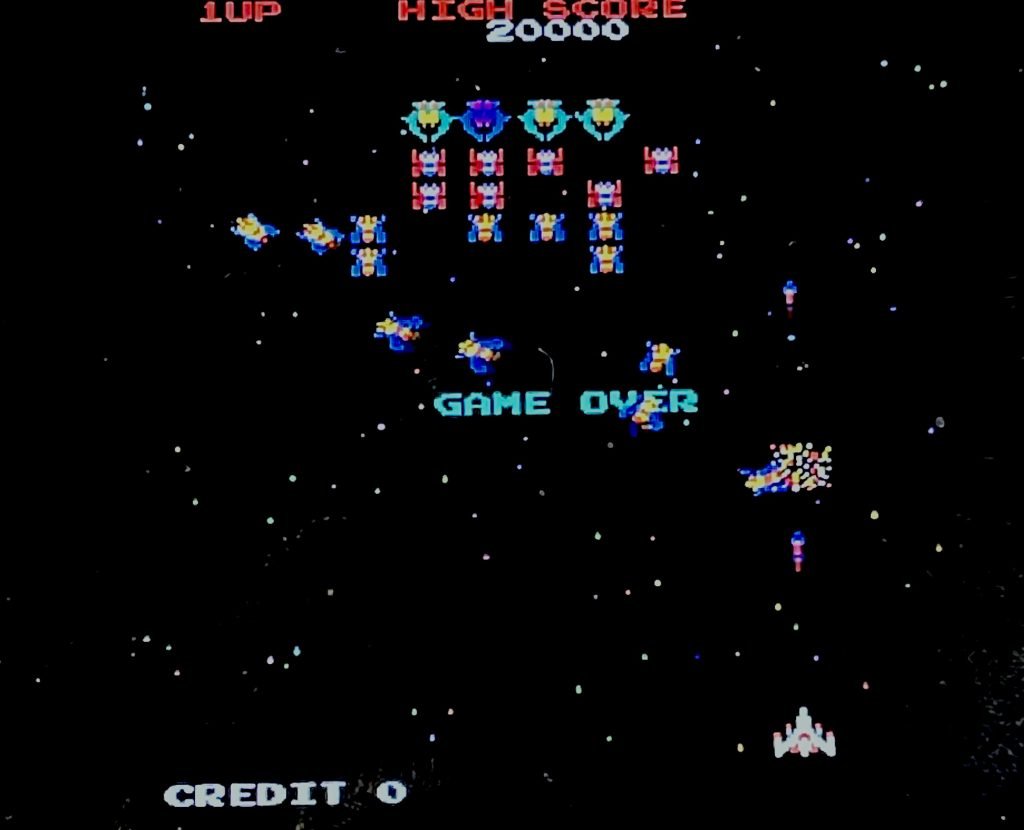
The setting for aspect ratio and video scaling feels pretty inconveniently located to me, unless someone else knows a more efficient way to set this.
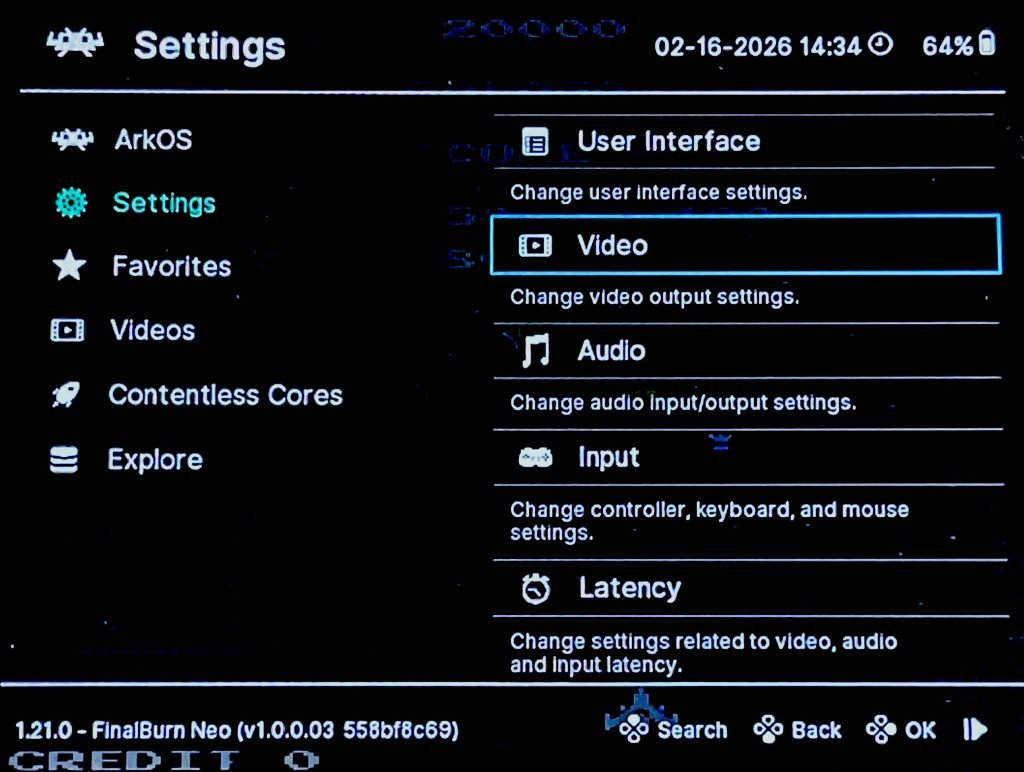
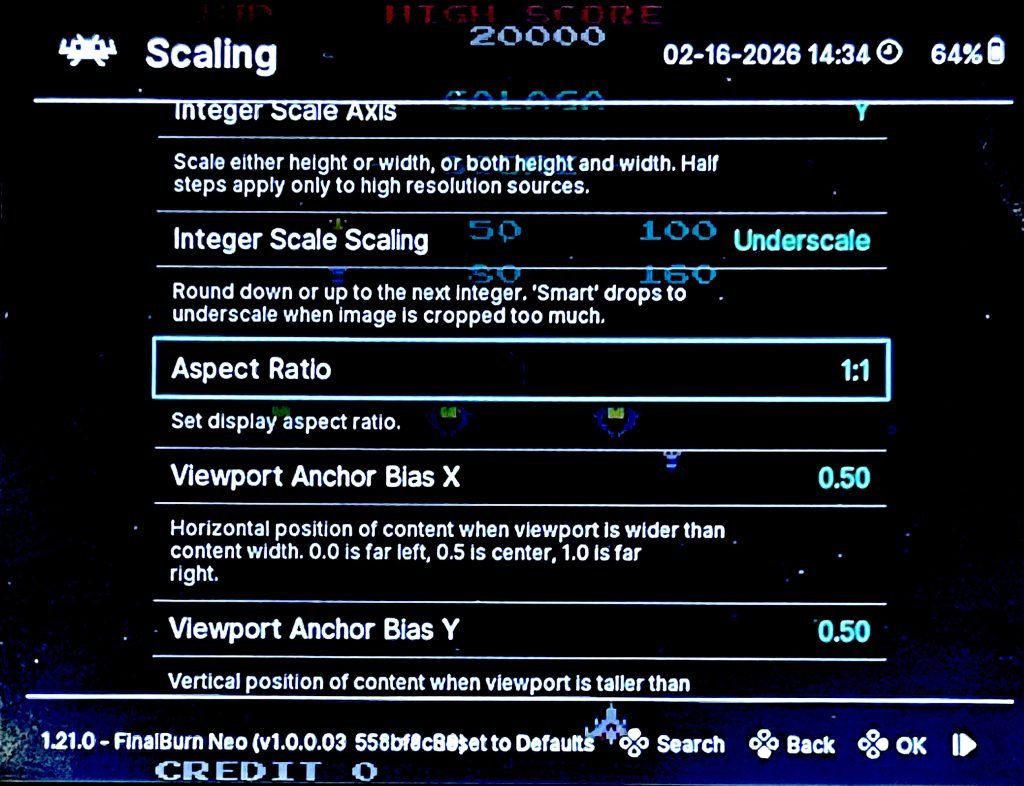
If you have the community ArkOS (see above) you can hit FN while in the game, hit B to get to the main ArkOS menu, and again to navigate to the second option which is Settings which will allow you to select Video on the right, and then select the appropriate Aspect Ratio. Once set you can back out again with B, select ArkOS, Quick Menu, then Resume. Whew!
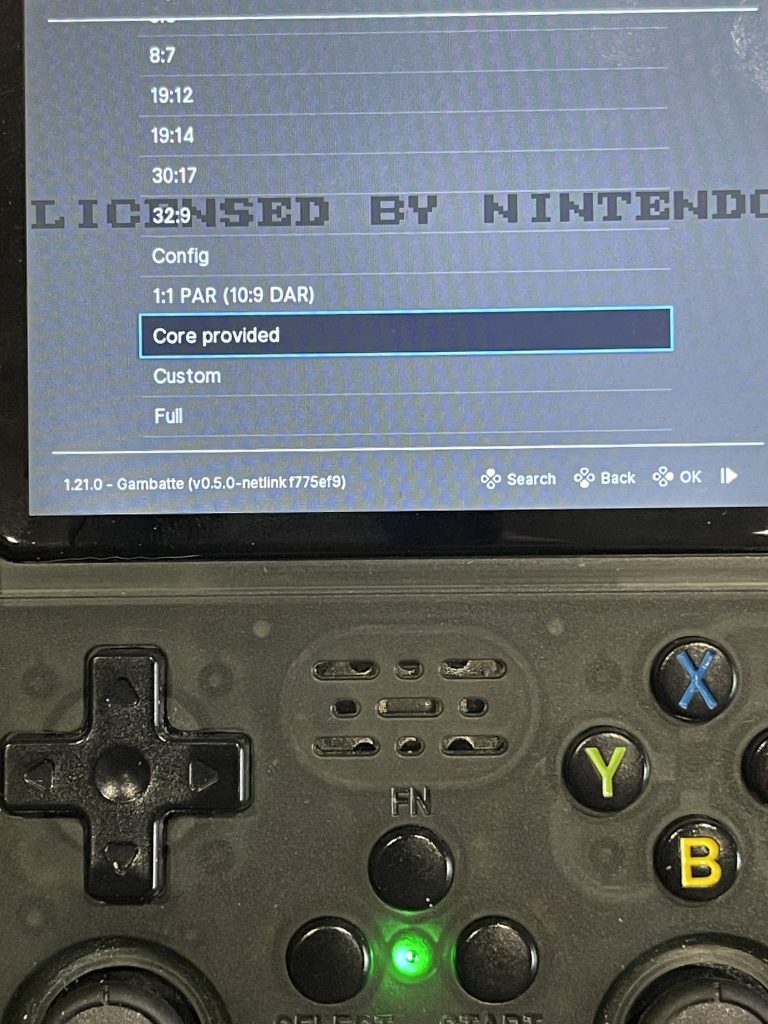
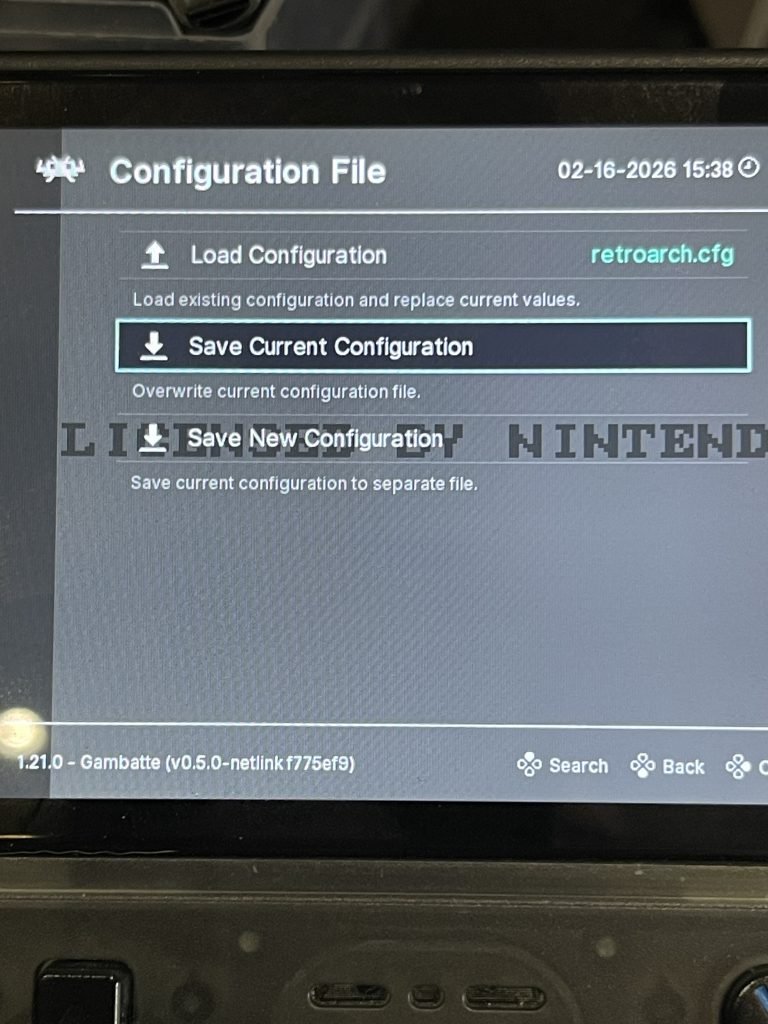
A good option is to set Core Provided as the aspect ratio if you don’t mind black bars instead of the screen being stretched to fill the full display. If that works for you, save the configuration and it will then select it as the preset for any games in Retroarch going forward.
Game / Emulator Will Not Run
Usually a game not running will be due to a mismatch between what the emulator expects and the files you provide. For example:
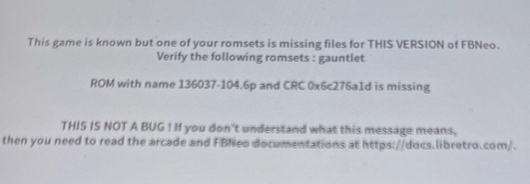
Despite the error message, though, it could actually be that switching the emulator that is launched for that specific game can resolve the issue. Confusingly, the emulator is selected in the game’s metadata which is edited by highlighting the game then hit Select:
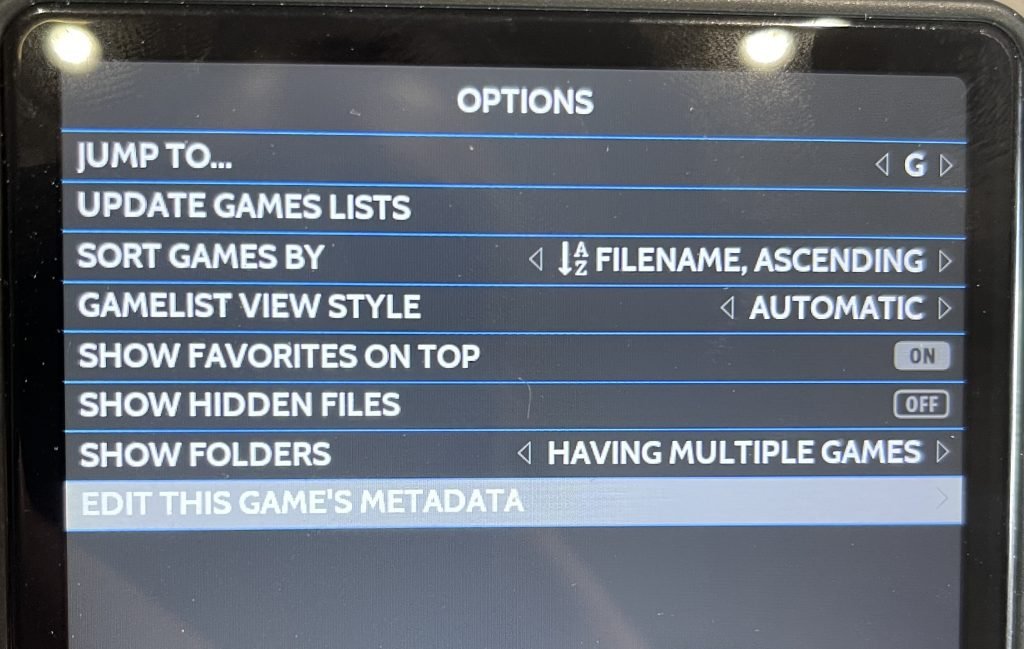
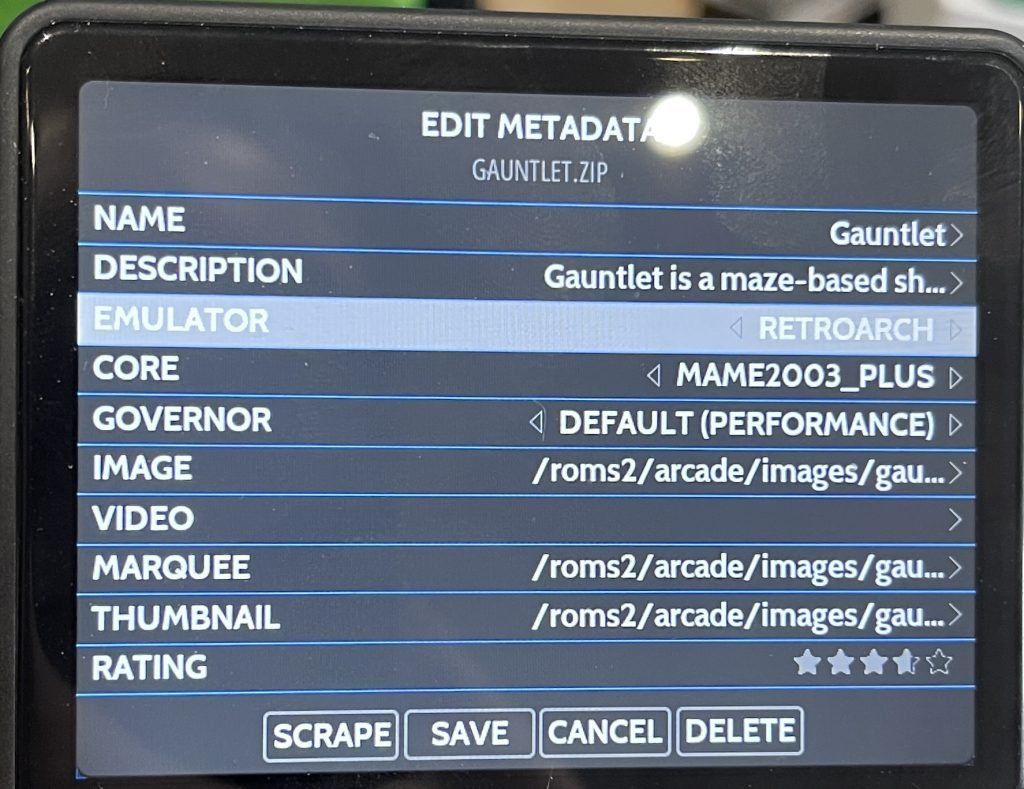
I had a frustrating time with Gauntlet arcade refusing to launch until I switched to using MAME2003_Plus under RetroArch emulator.
If an entire emulator doesn’t run at all, it could be that you need to add missing BIOS files:
Over to You
Got any tips to share? I am still new to the R36S so I expect there are a lot of things I have missed, so do let me know!
 R36S Pocket Games Console Review (Cheap + Great!)