

Fully cross-platform, truly portable code has long been a dream of developers. Even now, it’s a key selling point of game development environments and tools such as Godot and GameMaker. But wind the clock back three decades and the problem was supposedly solved by a language called Java.
Java was even advertised as “write once, run anywhere”.
The idea for this article has been sat in drafts for over a year with no payoff. What changed was finding out that there was a way to code in Java for at least some retro machines, so the marketing claim finally gets to be tested on Windows XP, Commodore 64 and Amiga!

Write Once, Run Anywhere with Java
In my head, Java is still relatively new. Except it isn’t, it dates back to 1995 (the 90s is only 10 years ago, right?).
Back then I learned it because it was the big new thing, but directly afterwards I moved on to C# largely because there were only a few clients who used Java, and for them it was all JSP (Java Server Pages).
The goal behind Java was a fully object-oriented, memory-safe, truly cross-platform language. It is a compiled language, but javac compiles to bytecode rather than a native binary. The JVM runs that bytecode, interpreting it at first and compiling the busiest parts to native code as the program runs. That is how it stays portable without being slow.
Since then it has become a successful programming language in the enterprise, and a plethora of non-PC devices, which means everything from phones to set-top boxes. As a result, billions of devices run Java natively, even today.

You can now follow the tutorials and edit the code right in your web browser with the Online Retro IDE
– No downloads, configuration, etc necessary, and it is free!
What are the JVM, JRE, and JDK and which do I need?
One source of confusion for people getting into Java is the three-letter acronym components of Java development: the JRE, JVM, and JDK. Partly the confusion comes from developer communities specifying that you need a specific or updated version of one or more of these elements, so it is worth knowing what each is for and how they interrelate.
Java Runtime Environment (JRE): The JRE is necessary for executing traditional Java programs. It includes the Java Standard Library, which provides essential classes and files like java.lang, java.util, java.io, and java.sql, among others. The JRE also contains the Java Virtual Machine (JVM), which executes Java programs by loading class files into memory and ensuring smooth operation across different platforms with automatic memory management and security checks.
Java Virtual Machine (JVM): The JVM is part of the JRE and is responsible for executing Java programs. It handles platform compatibility, memory management, garbage collection, multithreading, and security checks, ensuring the program runs efficiently without requiring modifications for different operating systems.
Java Development Kit (JDK): The JDK is, as the name suggests, essential for developing Java programs. That means creating, modifying, compiling, debugging, testing, and running Java. It includes the JRE (and thus the JVM), the Java compiler (javac), and the source code for Java standard libraries. It also provides tools for debugging, monitoring, and managing Java applications, such as creating jar files. The JDK is comprehensive, containing many tools and resources that may not always be used but are available when needed.
Basically, the JRE is all you need for running Java programs, the JVM is bundled in the JRE and executes them.
The JDK provides the necessary tools for developers to use Java in their applications. This is what you will need to grab if you want to get your hands dirty with Java. Oracle stopped offering a separate JRE download after Java 8, so for anything modern you just install a JDK.
Performance
You might think having Java compile to a byte code executed by the JVM rather than “to the metal”, performance might take a huge hit?
Check these results from Dave’s Garage:
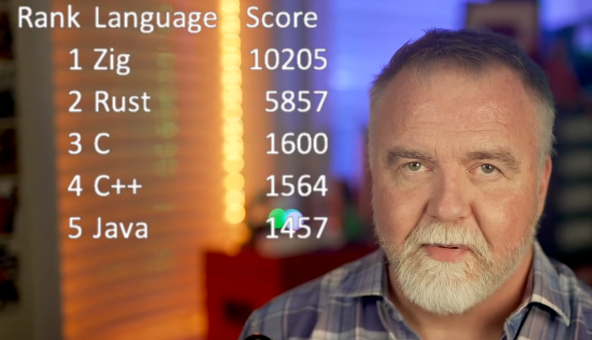
The Java community has put a LOT of effort into performance over the years, which means it is no laggard. You get quality of life user experience, extremely robust security, along with top 5 raw performance …
Compiling and Executing Java on Retro Computers
On a C64 there is no JVM, so how can we execute Java programs there?
Enter Java Grinder, which goes the other direction and takes your intermediate language byte code and compiles for the hardware, ahead of time rather than at run-time.
Java Grinder needs a JDK, as usual, but only for javac. It reads the .class files the compiler produces, and nothing from the JRE ends up on the C64 or Amiga.
Installing the Java Development Kit
Not sure if you have Java? You can see what you have installed from a terminal using:
java --version
Versions up to Java 8 only understand the single-dash java -version, which still works on new ones too.

Open (GPL) builds are available at JDK.Java.net and not open but free-to-use installers are available from Oracle.
On Linux, you can usually install the Open version of the JDK using your package manager, eg.
sudo apt install openjdk-21-jdk
sudo snap install openjdk
Visual Studio Code has an Extension Pack for Java that is very helpful for getting up and running real quick with a nice (and free!) development environment, but you do not need an IDE necessarily.
For my Windows XP box, described in full below, I grabbed a relatively period-correct version from Archive.org, mainly because the Oracle website didn’t play nice with my installed web browsers.
Hello World in Java
Open your text editor and create a new file, calling it something like hello.java:
public class hello {

    public static void main(String[] args) {

        System.out.println("Hello World!");

    }

}
Now compile either with your IDE or using the terminal:
javac hello.java
You should see a new file called hello.class
Then, if all goes well, you should be able to run it:
java hello (where hello is the name of the class that was generated above)
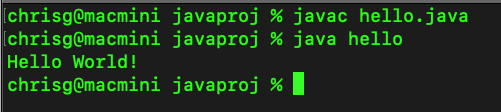
Note that Java is case-sensitive, which means if you called it Hello.java or if your public class was named Hello then both need to match!
I’ve used lower case here to keep the typing simple, but the Java convention is to start class names with a capital letter (Hello.java containing class Hello), and that’s what you’ll see in most examples, including Java Grinder’s own samples.
Java Hello World Breakdown
Here is what all that means:
Class: Java is object-oriented, so it organises code and allocates memory around classes. For now just think of a class as a container, and in our case our hello class gets a ‘method’ (function) added called main.
Public: The main method is public so that the Java Runtime Environment (JRE) can access and call it from outside the class. If it were private or protected, the JRE wouldn’t be able to run it.
Static: The main method is static because it needs to be called on the class itself. This allows the JRE to execute the method without creating an object of the class.
Void: The main method has a return type of void because it does not need to return any value. Once the method completes its execution, the program ends without returning anything. You might note that in C or BASH we might want to return a number indicating everything was ok or that there was an error number generated.
Main: The method must be named main because the JRE specifically looks for this name to start the program. This is a convention that has to be followed.
String[] args: This is an array of strings so that you can pass arguments to the program at runtime.
Static is everywhere on the retro targets, since Java Grinder programs are mostly static methods, ints and arrays.
Wait, it gets easier
Newer versions of Java mean you do not need all those lines or even to compile before running. Since Java 11 you can run a source file directly with java hello.java, and since Java 25 (September 2025) the class around main is optional too. Java 21 to 24 can do it with --enable-preview:
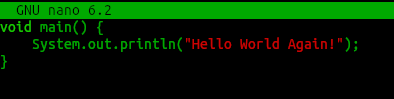
void main() {
    System.out.println("Hello World!");
}
I am in two minds about this, though, for anyone actually wanting to learn Java versus just see code running because those OOP aspects are really important to understand …
The Pentium III: Java on its home turf
The Pentium III launched in February 1999, right in Java’s boom years. Sun’s JDK 1.2 came out in December 1998, 1.3 in May 2000 and 1.4 in February 2002, so these are the PCs Java grew up on.
Modern Java is out of reach, of course. Current OpenJDK releases have dropped the 32-bit x86 port.
I picked Java SE 6, released 11 December 2006, so it turns 20 this year. Last public update was 6u45 in 2013, and the 32-bit Windows installer is jdk-6u45-windows-i586.exe, 69.9 MB.
Sun’s stated minimum for Java 6 was a Pentium 166 MHz with 64 MB of RAM, so the Pentium III is pretty comfortable.
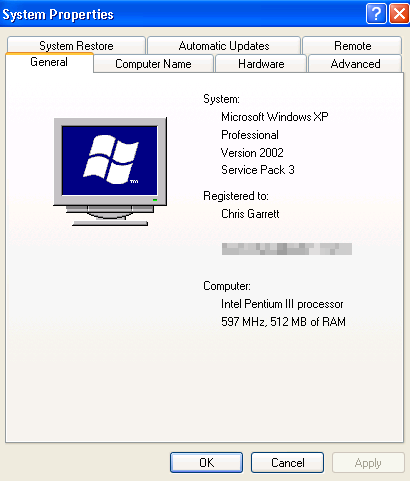
I am running Windows XP, which coincidentally launched on 25 October 2001, so it just turned 25! The machine runs at 1024 x 768 over Remote Desktop from my Mac for screen captures, and a BenQ monitor via VGA for actual use.
Getting a 2006 JDK onto a 2006 PC in 2026
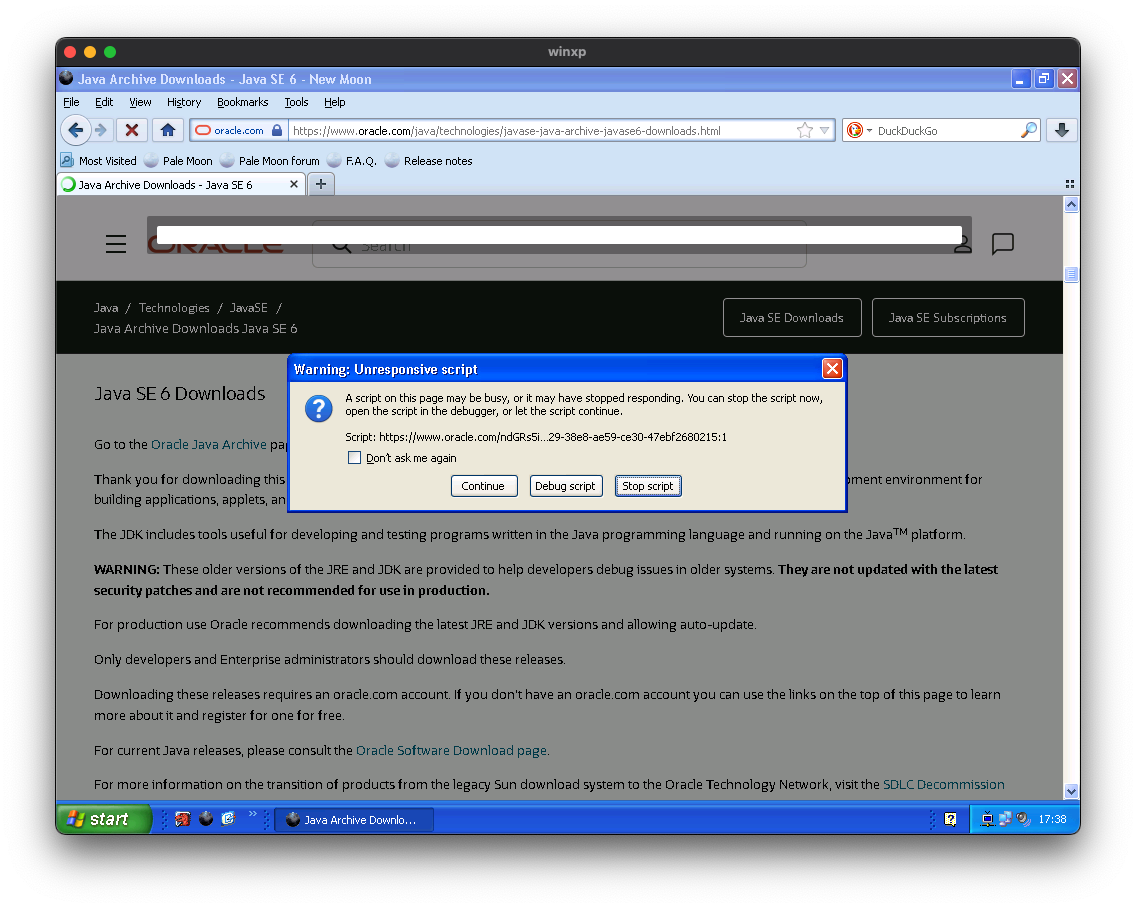
The standard advice is to download Java from Oracle’s Java SE 6 archive page but on XP in New Moon browser the page greys out behind a cookie banner that never finishes loading. Then Oracle’s bot detection hangs the browser.
Fortunately, Internet Archive’s plain download listing works fine on XP: archive.org/download/java-se-jdk-6u45. It’s the same installer, uploaded in August 2022.
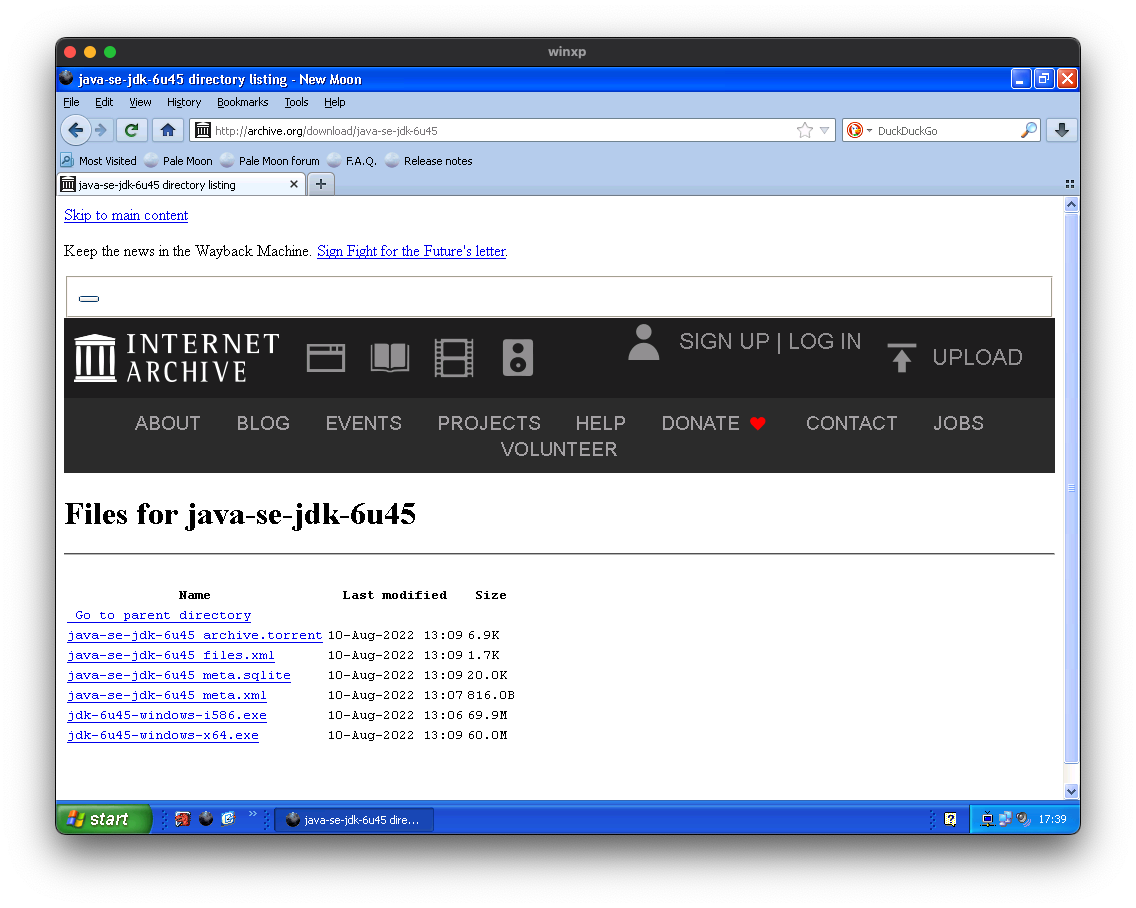
70 MB only took a couple of minutes even over my Pentium’s 10 Mbit/s networking.
The installer puts in the JDK, then a second “Java Setup” stage for the public JRE, complete with Oracle’s “3 Billion Devices Run Java” banner, the same slogan Michael Kohn’s Amiga demo opens with.
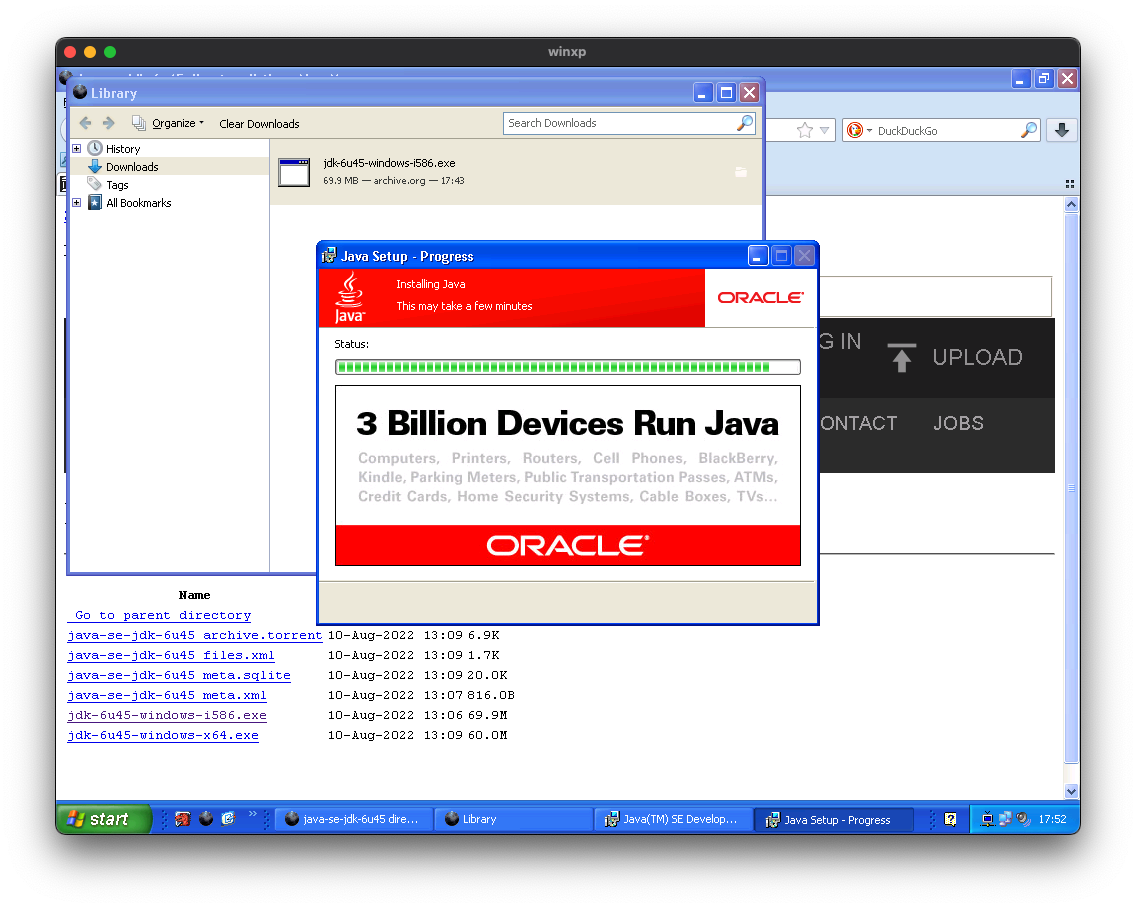
The public JRE adds the Java browser plugin. New Moon flags both Java plugins as known to be vulnerable, and I set them to Never Activate in Tools > Add-ons > Plugins. The JDK is fine for compiling and running my own programs.
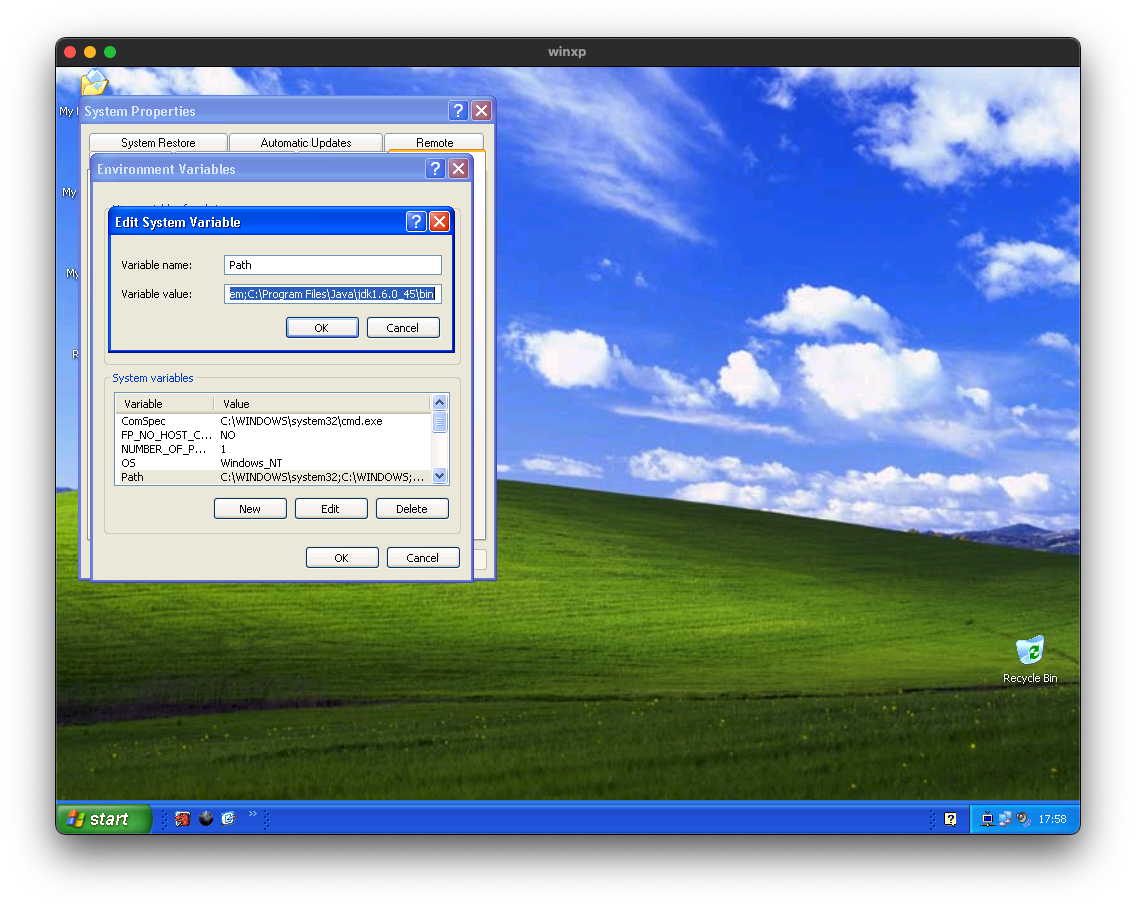
The installer puts java on the PATH but not javac. I added C:\Program Files\Java\jdk1.6.0_45\bin to the system Path in My Computer, Properties, Advanced, Environment Variables.
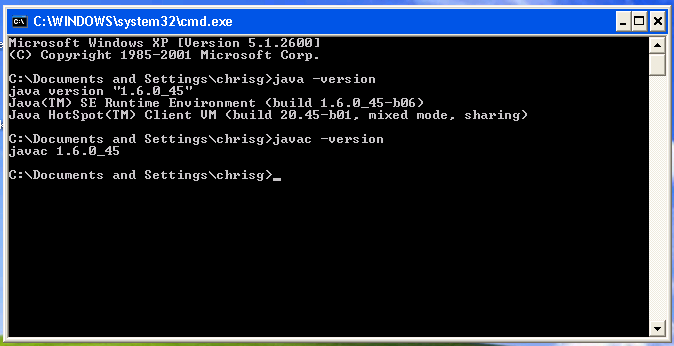
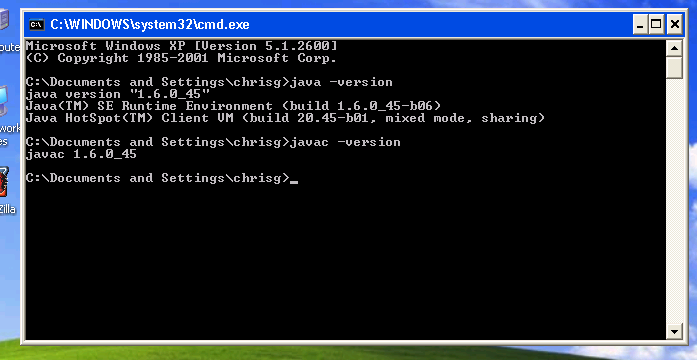
A new Command Prompt then shows Java 1.6.0_45 and javac 1.6.0_45, running on the HotSpot Client VM in “mixed mode, sharing”: interpreted first, hot code compiled to native as it runs, and class data sharing to start up faster. Client VM is what Java 6 picks on a single CPU 32-bit machine.
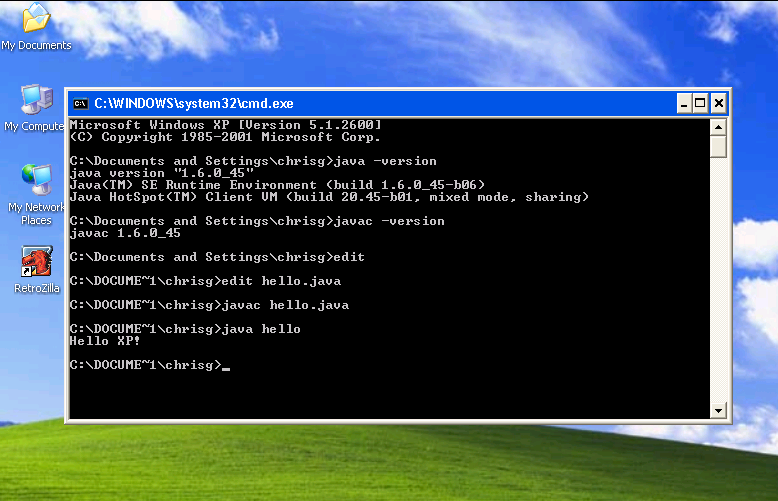
Just to prove the same code that worked on Mac works on Windows XP:
Java on the Commodore 64
I was kind of hoping I would be able to tell you “Just compile the .class and run it on your C64”, but that is not the case.
Java was developed with 32 bit and higher processors in mind, but that didn’t stop the community. Several unofficial ports of the Java virtual machine exist on lots of platforms never intended to get Java, but there are also compilers that take the byte code and make native executables.
One of those is the aforementioned Java Grinder, an ahead-of-time compiler. It takes the .class bytecode javac produces and turns it into assembly for a real CPU, which is then assembled to a native program. No virtual machine runs on the target.
Target machines include: Amiga, Apple IIgs, Atari 2600, ColecoVision, Amstrad CPC, Commodore 64, Intellivision, MSX, NES, Nintendo 64, PlayStation 2, Sega Dreamcast, Sega Genesis, SNES, TI-99/4A, TRS-80 CoCo, and more stuff that is less relevant to us here but still interesting such as microcontrollers.
Getting Grinder
Java Grinder was written by Michael Kohn (also the author of the naken_asm assembler, and of the Amiga demo featured), with Joe Davisson responsible for the 6502 code generator, the C64 platform and the 65816 side, and Carsten Dost listed as the third author.
You can get the code from GitHub at mikeakohn/java_grinder and mikeakohn/naken_asm. There are zip files on his web page too, but they are source code (from 2023, so older than GitHub) and still need compiling. naken_asm does have a ready-made binary for Apple Silicon Macs on its own page.
Building Grinder
Both projects build with make. The extra make java step builds JavaGrinder.jar, the API classes that javac needs later:
cd ~/github
git clone https://github.com/mikeakohn/naken_asm.git
git clone https://github.com/mikeakohn/java_grinder.git
cd naken_asm && ./configure && make
cd ../java_grinder && make && make java
On my Mac the build only worked once I fixed a problem: my Command Line Tools were missing the C++ header cinttypes, which usually means an incomplete or out-of-date install after a macOS update. Pointing the build at the SDK’s copy fixed it, using this in place of plain make for both projects:
make CXX="g++ -isystem $(xcrun --show-sdk-path)/usr/include/c++/v1"Paths
Building with make leaves the java_grinder and naken_asm programs inside their own folders, so your shell won’t find them yet. This adds both folders to your PATH in ~/.zshrc so it sticks (use ~/.bashrc on Linux, and change the paths if you cloned somewhere else), then checks the shell can find them:
echo 'export PATH="$HOME/github/java_grinder:$HOME/github/naken_asm:$PATH"' >> ~/.zshrc
source ~/.zshrc
which java_grinder naken_asm
Compiling with Grinder
As before, we use javac but ensure Java Grinder’s API jar is on the classpath, either with -classpath ~/github/java_grinder/build/JavaGrinder.jar:. on the command line or the CLASSPATH environment variable, or use a build script like the one listed below.
Then we run java_grinder MyClass.class out.asm c64
This will produce out.asm which we feed to naken_asm to assemble it. For the C64 that is naken_asm -l -type bin -o hello.prg out.asm, giving a .prg. The Amiga needs different options, naken_asm -I ~/github/naken_asm/include -l -amiga -o hello out.asm, where the include folder holds the names of the Amiga’s hardware registers.
Build.sh
To make things less cumbersome, here is an example build script:
#!/bin/bash
# Java source to a C64 .prg with Java Grinder.
# Expects java_grinder and naken_asm to be in ~/github/java_grinder and ~/github/naken_asm.
set -e
cd "$(dirname "$0")"
JG=~/github/java_grinder
NAKEN=~/github/naken_asm/naken_asm
name=${1:-Hello}

javac -classpath "$JG/build/JavaGrinder.jar:." "$name.java"
"$JG/java_grinder" "$name.class" "$name.asm" c64
"$NAKEN" -l -type bin -o "$name.prg" "$name.asm"
ls -l "$name.prg"
Save it next to your Java file, chmod +x build.sh, then run ./build.sh hello. Without a name it looks for Hello.java.
It’s not the full Java
The Java you get is a subset, as you might expect. On the 6502 targets like the C64, ints are signed 16-bit (-32768 to 32767), division is unsigned, and there are no 32-bit or floating point types. The 68000 on the Amiga gets proper 32-bit ints. No target supports the switch statement.
Java Grinder’s C64 startup code takes over the whole machine, BASIC and KERNAL ROMs are switched off. VIC is moved to bank 3 with the screen memory located at $C000 and the character set in RAM to $C800. A raster interrupt is set up at line 255 every frame to update hardware sprites. Java’s heap is moved to $A000, where BASIC normally lives.
Only NTSC is supported for now, according to Joe’s C64 API notes. Helpfully, VICE and the C64 Ultimate can easily switch to NTSC but on original UK PAL hardware you might see unexpected results.
Joe’s Snake example shows what can be done. It is 1,261 lines of Java using sprites, all three SID voices with ADSR and the filter, and the joystick.
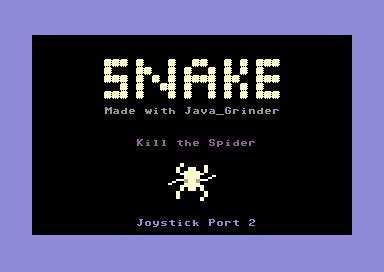
It compiles to a 22,157 byte .prg. Compiled Java is bulky next to hand-written assembly, because the 16-bit maths runs through a software stack.
C64 Hello.java
We need a new Hello World example for use with Grinder because there is no println.
Yeah, so much for write once, eh?
import net.mikekohn.java_grinder.c64.VIC;
public class hello {

    public static void main(String[] args) {

		// Java Grinder moves the screen to 0xc000 with the character set in RAM
		// at 0xc800, so the ROM characters have to be copied in before any text.
		VIC.textClear(32);
		VIC.textEnable(0);
		VIC.makeTextTable();
		VIC.copyLowercase();

		// Optional colour settings:
		VIC.makeColorTable();
		VIC.border(6);
		VIC.background(0);

		// Have to use the VIC api:
		VIC.textString(12, 12, "Hello from Java!", 7);

		// Without this it will quit back to BASIC
		while(true) {}

    }

}
With BASIC and the KERNAL switched off there is no PRINT or CHROUT, so text goes out through the VIC.text calls.
In VIC bank 3 the video chip cannot see the character ROM, so any text output is garbage until the screen is cleared and a ROM character set is copied in with VIC.copyUppercase() or VIC.copyLowercase().
VIC.textString() takes ASCII. With the upper case character set, capital letters come out as PETSCII graphics; the lower case set shows mixed case properly.
Graphics data can go in the RAM under the I/O chips at $D000–$DFFF, with interrupts disabled and the processor port set to $34 for the copy, then back to $35. Joe’s C64 API notes show the pattern; without the sei, the raster interrupt would write sprite positions into that RAM and never be acknowledged.
Our program ends with an infinite loop so it doesn’t bomb out on completion.
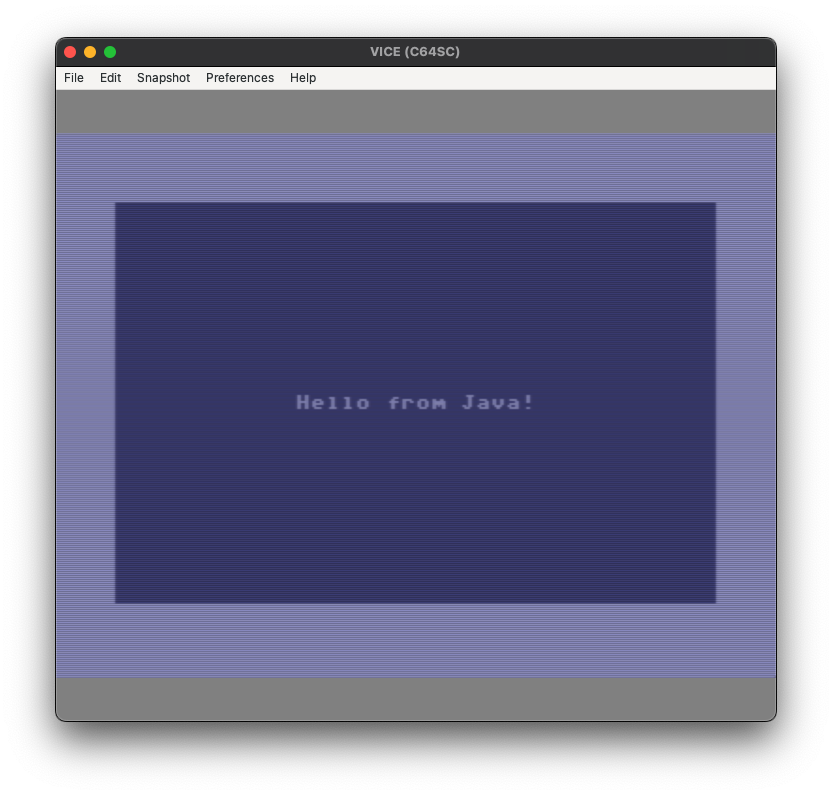
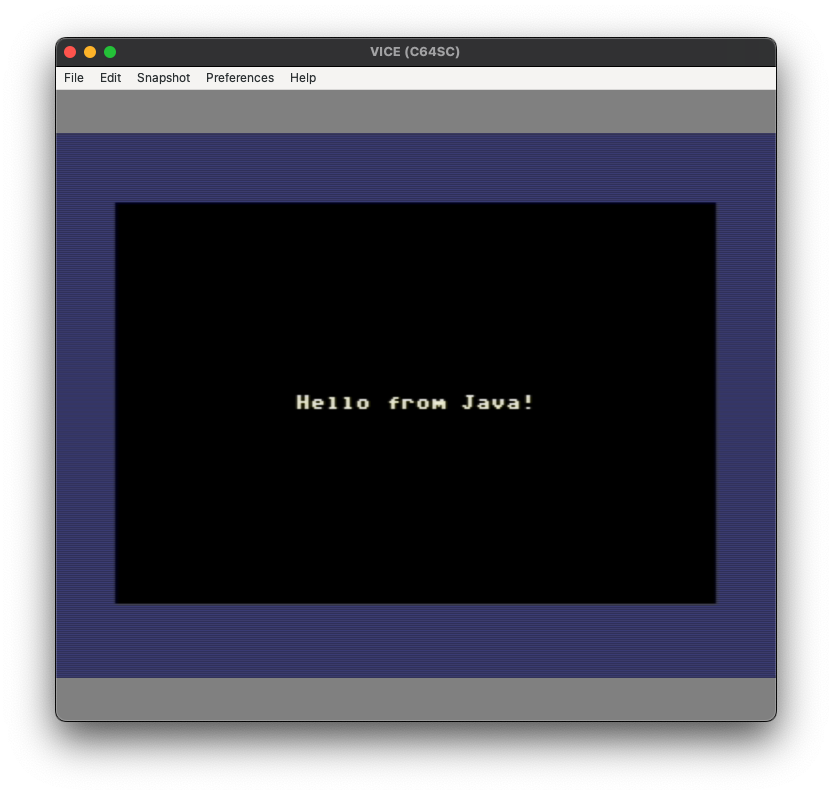
A splash of colour can be added with a few more lines:
The Amiga
Michael Kohn’s Amiga demo targets an original Amiga 1000 with 512K of chip RAM and no fast RAM. It has three parts, the “3 Billion Devices Run Java” screen with Bach played as 8-bit samples, a dual-playfield starfield with blitter logos, then copper bars, sprites and a Mandelbrot.
The Java API wraps the custom chips, with copper lists built with calls like appendSetColor and appendWait, blitter objects you fill in and run, and sprite and bitplane pointers reset every vertical blank.
The demo builds from the repo’s samples/amiga with make then make grind, giving a 140,684 byte AmigaDOS executable (hunk format).
To boot it I put it on a floppy image with xdftool from the amitools Python package, formatting it, installing a bootblock, copying the program to C:main and adding a startup-sequence that runs it. Same recipe the Retro Game Coders online IDE uses for its Amiga builds.
It ran all the way through to the Mandelbrot in FS-UAE as an Amiga 500 with AROS, the free Kickstart replacement, so no official Kickstart ROM was needed.
Amiga Hello.Java
As with C64, we do not have the luxury of just outputting our text and calling it a day. In fact, the Amiga API has no text methods at all, because the Amiga has no text mode like the C64’s. The screen is only bitplanes, in other words pixels, so we need to create a bitmap font in memory and construct our text display that way:
import net.mikekohn.java_grinder.amiga.Amiga;
import net.mikekohn.java_grinder.amiga.Copper;

public class HelloAmiga
{
  // One 320x200 bitplane, 40 bytes per line
  static byte[] screen;

  // 8x8 glyphs, only the letters we need
  static byte[] font =
  {
    0, 0, 0, 0, 0, 0, 0, 0,                                     // 0 space
    0b01100110, 0b01100110, 0b01100110, 0b01111110,             // 1 H
    0b01100110, 0b01100110, 0b01100110, 0,
    0, 0, 0b00111100, 0b01100110,                               // 2 e
    0b01111110, 0b01100000, 0b00111100, 0,
    0b00111000, 0b00011000, 0b00011000, 0b00011000,             // 3 l
    0b00011000, 0b00011000, 0b00111100, 0,
    0, 0, 0b00111100, 0b01100110,                               // 4 o
    0b01100110, 0b01100110, 0b00111100, 0,
    0b00001110, 0b00011000, 0b00111110, 0b00011000,             // 5 f
    0b00011000, 0b00011000, 0b00011000, 0,
    0, 0, 0b01111100, 0b01100110,                               // 6 r
    0b01100000, 0b01100000, 0b01100000, 0,
    0, 0, 0b01100110, 0b01111111,                               // 7 m
    0b01111111, 0b01101011, 0b01100011, 0,
    0b00011110, 0b00001100, 0b00001100, 0b00001100,             // 8 J
    0b00001100, 0b01101100, 0b00111000, 0,
    0, 0, 0b00111100, 0b00000110,                               // 9 a
    0b00111110, 0b01100110, 0b00111110, 0,
    0, 0, 0b01100110, 0b01100110,                               // 10 v
    0b01100110, 0b00111100, 0b00011000, 0,
    0b00011000, 0b00011000, 0b00011000, 0b00011000,             // 11 !
    0, 0, 0b00011000, 0,
  };

  // "Hello from Java!"
  static byte[] message = { 1, 2, 3, 3, 4, 0, 5, 6, 4, 7, 0, 8, 9, 10, 9, 11 };

  static void drawMessage(int column, int row)
  {
    int n, line;

    for (n = 0; n < message.length; n++)
    {
      int glyph = message[n] * 8;
      int dest = row * 8 * 40 + column + n;

      for (line = 0; line < 8; line++)
      {
        screen[dest + line * 40] = font[glyph + line];
      }
    }
  }

  static public void main(String[] args)
  {
    Copper copper = new Copper(200);

    screen = new byte[8000];

    Amiga.disableMultitasking();

    // Centre 16 characters on a 40x25 grid
    drawMessage(12, 12);

    copper.appendSetBitplane(0, screen);
    copper.appendSetColor(0, 0x004);
    copper.appendSetColor(1, 0xfff);
    copper.appendEnd();
    copper.run();

    Amiga.setVideoMode(
      Amiga.VIDEO_MODE_BITPLANE_COUNT_1 |
      Amiga.VIDEO_MODE_COLOR);

    Amiga.setPlayfieldScroll(0, 0);
    Amiga.setPlayfieldPriority(4, 4, false);
    Amiga.setBitplaneModuloEven(0);
    Amiga.setBitplaneModuloOdd(0);
    Amiga.setDisplayWindowStart(129, 44);
    Amiga.setDisplayWindowStop(193, 244);
    Amiga.setDisplayBitplaneStart(56);
    Amiga.setDisplayBitplaneStop(208);

    // Sprite DMA off hides junk sprites
    Amiga.setDMA(Amiga.DMA_COPPER | Amiga.DMA_BITPLANE);
    Amiga.clearDMA(Amiga.DMA_SPRITE);

    while (true) { }
  }
}
The screen is one bitplane of 8000 bytes. Each byte is 8 pixels, with the leftmost pixel in the top bit, and each line is 40 bytes, so the character at column c, row r starts at byte r * 8 * 40 + c. drawMessage copies each letter’s 8 bytes down the screen, one 40-byte line at a time.
The font only has the 11 letters the message needs, written in binary so you can see their shapes in the source. That is also why message holds glyph numbers rather than ASCII, as Java Grinder has very little support for strings.
The Copper list points bitplane 0 at our screen and sets the two colours, and switching off sprite DMA stops any junk sprites left over from AmigaOS appearing.
To build it and put it on a bootable floppy, the same way as Mike’s demo:
javac -classpath ~/github/java_grinder/build/JavaGrinder.jar:. HelloAmiga.java
java_grinder HelloAmiga.class hello_amiga.asm amiga
naken_asm -I ~/github/naken_asm/include -l -amiga -o hello_amiga hello_amiga.asm
pip install amitools
printf 'C:main\n' > startup-sequence
xdftool hello_amiga.adf format JavaGrinder + boot install + makedir s + makedir c \
  + write startup-sequence s/startup-sequence + write hello_amiga c/main
fs-uae --amiga_model=A500 --floppy_drive_0=hello_amiga.adf
As we are displaying graphics anyway, why not use the Amiga to its advantage?
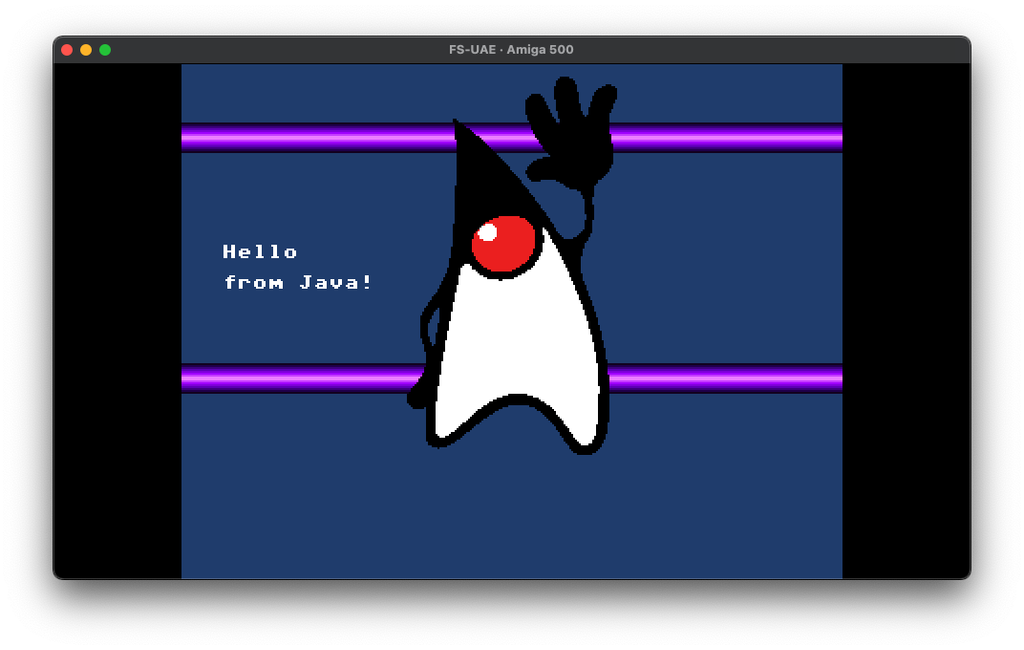
Duke started as a 320×200 PNG with a transparent background. The Amiga needs raw bitplanes rather than a PNG, so I wrote a small Python script, png2planes.py, to convert it. Four colours fit in two bitplanes, so every pixel snaps to the nearest of black, white and red, and transparent pixels become colour 0.
Colour 0 is the trick here. The Copper changes it part way down the screen, line by line, which draws the bars. Duke’s background is colour 0, so the bars show through behind him while his white body stays white.
Plain nearest-colour had one surprise. The grey anti-aliased pixels around Duke’s outline came out red, because in RGB terms a mid grey is closer to a strong red than to black or white. The fix was to only let grey pixels match the greys in the palette.
#!/usr/bin/env python3
"""Turn a 320x200 PNG into raw Amiga bitplanes for Java Grinder.

Transparent pixels become colour 0, so whatever the Copper paints into
colour 0 (bars, gradients) shows through. Every other pixel snaps to the
nearest colour in the palette you give, which keeps anti-aliased edges
from exploding into hundreds of colours.

  python3 png2planes.py duke.png Duke.bin 000 fff e22

writes Duke.bin (plane 0, then plane 1, ... 8000 bytes each) for
Memory.preloadByteArray(), and Duke-preview.png to check the result.
Colours are Amiga 12-bit RGB hex; the first one is colour 1.
"""
import math
import sys

from PIL import Image

WIDTH, HEIGHT = 320, 200


def hex12_to_rgb(h):
    return tuple(int(c, 16) * 17 for c in h)


def is_grey(rgb):
    return max(rgb) - min(rgb) < 40


def nearest(rgb, palette):
    # Anti-aliasing between black and white makes mid greys, and a mid grey
    # is closer to a saturated red than to either black or white. Keep greys
    # on the palette's greys so edges don't sprout coloured pixels.
    candidates = range(len(palette))
    if is_grey(rgb):
        greys = [i for i in candidates if is_grey(palette[i])]
        if greys:
            candidates = greys
    return min(candidates,
               key=lambda i: sum((a - b) ** 2 for a, b in zip(rgb, palette[i])))


def main():
    if len(sys.argv) < 4:
        sys.exit(__doc__)
    src, out = sys.argv[1], sys.argv[2]
    colours = [hex12_to_rgb(h) for h in sys.argv[3:]]

    im = Image.open(src).convert("RGBA")
    if im.size != (WIDTH, HEIGHT):
        sys.exit(f"{src} is {im.size[0]}x{im.size[1]}, needs {WIDTH}x{HEIGHT}")

    indices = []
    for r, g, b, a in im.getdata():
        indices.append(0 if a < 128 else nearest((r, g, b), colours) + 1)

    planes = max(1, math.ceil(math.log2(len(colours) + 1)))
    data = bytearray()
    for p in range(planes):
        for y in range(HEIGHT):
            for x in range(0, WIDTH, 8):
                byte = 0
                for bit in range(8):
                    if (indices[y * WIDTH + x + bit] >> p) & 1:
                        byte |= 0x80 >> bit
                data.append(byte)

    with open(out, "wb") as f:
        f.write(data)

    preview_palette = [(0, 0, 0x44)] + colours
    preview = Image.new("RGB", (WIDTH, HEIGHT))
    preview.putdata([preview_palette[i] for i in indices])
    preview_name = out.rsplit(".", 1)[0] + "-preview.png"
    preview.save(preview_name)

    counts = [indices.count(i) for i in range(len(colours) + 1)]
    print(f"{out}: {planes} bitplanes, {len(data)} bytes")
    print("pixels per colour:", counts)
    print("preview:", preview_name)


if __name__ == "__main__":
    main()
It needs Pillow (pip install pillow). Convert the image, then build DukeAmiga.java exactly like HelloAmiga.java above:
python3 png2planes.py duke.png Duke.bin 000 fff e22
import net.mikekohn.java_grinder.Memory;
import net.mikekohn.java_grinder.amiga.Amiga;
import net.mikekohn.java_grinder.amiga.Copper;

public class DukeAmiga
{
  // Two bitplanes: 0 background, 1 black, 2 white, 3 red
  static byte[] screen;

  static byte[] font =
  {
    0, 0, 0, 0, 0, 0, 0, 0,                                     // 0 space
    0b01100110, 0b01100110, 0b01100110, 0b01111110,             // 1 H
    0b01100110, 0b01100110, 0b01100110, 0,
    0, 0, 0b00111100, 0b01100110,                               // 2 e
    0b01111110, 0b01100000, 0b00111100, 0,
    0b00111000, 0b00011000, 0b00011000, 0b00011000,             // 3 l
    0b00011000, 0b00011000, 0b00111100, 0,
    0, 0, 0b00111100, 0b01100110,                               // 4 o
    0b01100110, 0b01100110, 0b00111100, 0,
    0b00001110, 0b00011000, 0b00111110, 0b00011000,             // 5 f
    0b00011000, 0b00011000, 0b00011000, 0,
    0, 0, 0b01111100, 0b01100110,                               // 6 r
    0b01100000, 0b01100000, 0b01100000, 0,
    0, 0, 0b01100110, 0b01111111,                               // 7 m
    0b01111111, 0b01101011, 0b01100011, 0,
    0b00011110, 0b00001100, 0b00001100, 0b00001100,             // 8 J
    0b00001100, 0b01101100, 0b00111000, 0,
    0, 0, 0b00111100, 0b00000110,                               // 9 a
    0b00111110, 0b01100110, 0b00111110, 0,
    0, 0, 0b01100110, 0b01100110,                               // 10 v
    0b01100110, 0b00111100, 0b00011000, 0,
    0b00011000, 0b00011000, 0b00011000, 0b00011000,             // 11 !
    0, 0, 0b00011000, 0,
  };

  // "Hello" then "from Java!", side by side in one array.
  static byte[] message = { 1, 2, 3, 3, 4, 5, 6, 4, 7, 0, 8, 9, 10, 9, 11 };

  // One colour per scan line, 12-bit RGB
  static short[] bar =
  {
    0x102, 0x205, 0x408, 0x60b, 0x80d, 0xa0f, 0xc4f, 0xe8f,
    0xe8f, 0xc4f, 0xa0f, 0x80d, 0x60b, 0x408, 0x205, 0x102,
  };

  static final int BACKGROUND = 0x247;

  // Screen line 0 is beam line 44
  static final int TOP = 44;

  static void drawText(int column, int row, int start, int length)
  {
    int n, line;

    for (n = 0; n < length; n++)
    {
      int glyph = message[start + n] * 8;

      // Plane 1 only, colour 2, white
      int dest = 8000 + row * 8 * 40 + column + n;

      for (line = 0; line < 8; line++)
      {
        screen[dest + line * 40] = font[glyph + line];
      }
    }
  }

  static void addLine(Copper copper, int y, int color)
  {
    copper.appendWait(0, TOP + y);
    copper.appendSetColor(0, color);
  }

  // Keeps the loop body short, see below
  static void addBar(Copper copper, int y)
  {
    int n;

    for (n = 0; n < bar.length; n++)
    {
      addLine(copper, y + n, bar[n]);
    }

    addLine(copper, y + bar.length, BACKGROUND);
  }

  static public void main(String[] args)
  {
    int n;
    Copper copper = new Copper(200);

    // Copy the image into chip RAM
    byte[] image = Memory.preloadByteArray("Duke.bin");
    screen = new byte[16000];

    for (n = 0; n < 16000; n++) { screen[n] = image[n]; }

    Amiga.disableMultitasking();

    // Text in the gap left of Duke
    drawText(1, 11, 0, 5);
    drawText(1, 13, 5, 10);

    copper.appendSetBitplane(0, Memory.addressOf(screen));
    copper.appendSetBitplane(1, Memory.addressOf(screen) + 8000);
    copper.appendSetColor(0, BACKGROUND);
    copper.appendSetColor(1, 0x000);
    copper.appendSetColor(2, 0xfff);
    copper.appendSetColor(3, 0xe22);

    addBar(copper, 24);
    addBar(copper, 150);

    copper.appendEnd();
    copper.run();

    Amiga.setVideoMode(
      Amiga.VIDEO_MODE_BITPLANE_COUNT_2 |
      Amiga.VIDEO_MODE_COLOR);

    Amiga.setPlayfieldScroll(0, 0);
    Amiga.setPlayfieldPriority(4, 4, false);
    Amiga.setBitplaneModuloEven(0);
    Amiga.setBitplaneModuloOdd(0);
    Amiga.setDisplayWindowStart(129, 44);
    Amiga.setDisplayWindowStop(193, 244);
    Amiga.setDisplayBitplaneStart(56);
    Amiga.setDisplayBitplaneStop(208);

    Amiga.setDMA(Amiga.DMA_COPPER | Amiga.DMA_BITPLANE);
    Amiga.clearDMA(Amiga.DMA_SPRITE);

    while (true) { }
  }
}
Two Java Grinder gotchas came up with this one. Memory.preloadByteArray() builds Duke.bin straight into the program, but AmigaOS might load the program into memory the custom chips cannot see. Java Grinder’s own heap is allocated from chip RAM, so the code copies the image into a new byte[] before pointing the display at it.
The second is a real limitation you will probably hit. My first version failed to assemble with Offset out of range (-128,127). Java Grinder compiles loops with a short branch instruction that can only jump 127 bytes, and the two Copper calls inside my loop expanded past that. Moving them into their own addLine() method fixed it, since the loop then only holds a call.
Where next?
Java is a super-mature programming ecosystem today. You can make everything from desktop and mobile apps to big iron server backends. That is its strength, and unfortunately it’s not going to win the majority of fans in the retro game development world.
It’s a shame, Java really could be “write once run anywhere”. I guess we found a way to get it into more places, just not exactly as the creators intended!
 Worth a Watch issue 05