
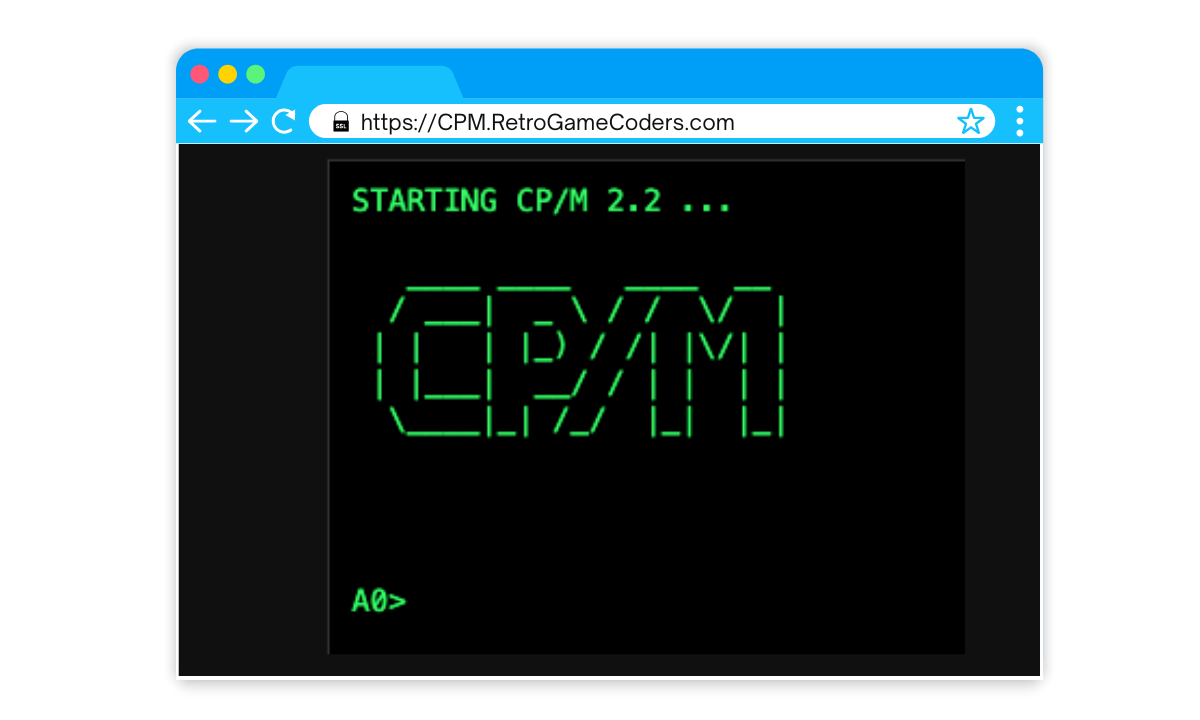
My full Z80 JavaScript CP/M emulator and IDE integration is finally fully working. You can use it as if you are sat at your CP/M command line terminal or you can compile C code in the online IDE. This has been a long road but finally here and I am super thrilled to have it available for you.
Past iterations had Z80 CPU emulation working great, and *parts* of CP/M were working. You could run Microsoft BASIC and load and execute Star Trek, for example.
But even with a ton of debugging, BDOS references, and the help of slop-making-plagiarism-machines, it would crash on doing anything more advanced than that, such as compiling C programs using Hi-Tech C.
Hair-pulling no longer, it works! You can even fully play Rogue with no glitches.
If you are new to the OS, check out the CP/M quick-start guide below. I am working on a video as I publish this also.

New! CP/M in the Browser via RunCPM!
I finally landed my white whale and got a real Z80 CP/M emulation working both as a web-based standalone and as part of my online retro IDE.
To do this I ported the amazing RunCPM to WASM using Emscripten. Download, clone or hack it via the linked repo and full credit to MockbaTheBorg for his wonderful work:
RunCPM emulates CP/M from Digital Research as close as possible, the only difference being that it uses regular folders on the host instead of disk images.
The magic part allowing me to do this at all was how RunCPM was created:
RunCPM is fully written in C in a modular way, so porting to other platforms should only require writing an abstraction layer file for it. No modification to the main code modules should be necessary.
A really nice side-effect of using RunCPM is it is the platform a great deal of the modern CP/M community uses, such as the Agon Light 2 and RC2014 folks.
Try it out now …
I have two entry points set up, with the first being a regular vt100 CP/M terminal prompt and the other sending you directly into Rogue with the flashing cursor switched off. Using some JavaScript trickery I made Rogue randomly seed so it plays differently each time you run it, otherwise it would read the R register and get the same seed each run.
Why Rogue?
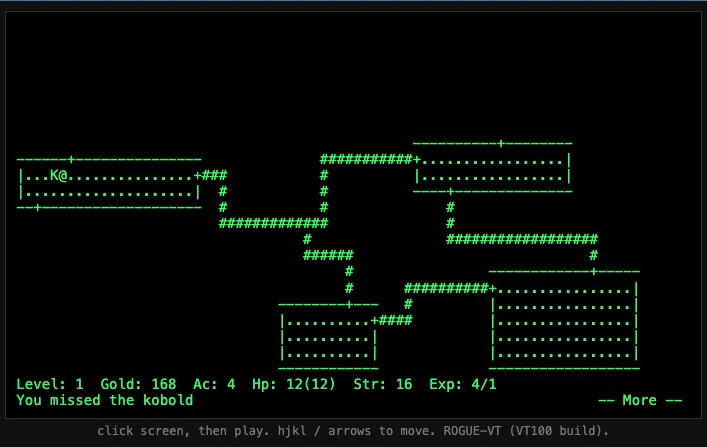
Rogue is the test I keep coming back to because if that game works then you know all the crucial parts are confirmed to be working:
- Z80 core
- vt100 console
- disks/filesystem
- bios api etc
The other, less obvious motive is I need to show how you can auto-start a program on warm/cold boot, so that people (and my IDE) can use it as part of a development workflow.
Getting files onto the CP/M disk and executing is a big part of why I started this whole project!
Moving the Old Version (CP/M Via DOSBox)
I did have CP/M emulation running in the web browser twice before, most recently in 2025, but I did have to “cheat” and there were several limitations. Once I knew I could have DOSBox running in a web browser, as you might have seen in my IDE, it was just a case of finding a working and capable CP/M that ran on DOS.
DOS for this is not ideal, wrong chip architecture! You should remember at this point that DOS and CP/M have a “history”, but also most of the people who wanted to run CP/M on an x86 machine do already have DRDOS and CP/M86 right there.
For our purposes I wanted a Z80 CP/M to go along with the famous machines of back in the day such as Altair and IMSAI, and the modern recreations/kits such as the RC2014.
Fortunately, there was an amazing and compact CP/M80 emulator called MyZ80 that I could autorun on DOS boot, so it appeared as if you were booting right into CP/M.
I will leave the DOS version and the older CP/M emulator available for those who might miss them.
CP/M Quick Start
To get you started I have include some useful stuff for you to try out, listed below.
Drive A:
- Rogue – Dungeon game
- Ed – Line-based text editor
- WS – WordStart classic word processor and text editor (use ‘N’ non-document format)
- Z80ASM – Z80 Assembler
- TE – Text Editor
- ZDE – Another text editor
- ASM – CP/M Assembler
Drive B:
- MBasic – Microsoft BASIC
- StarTrek.bas – Classic Star Trek game
Drive C
- C – Hi-Tech C compiler
- Turbo – Turbo Pascal, also a decent text editor built-in
Keyboard shortcuts
- CTRL + E : Forces the cursor to the next line of the screen for continued command line input.
- CTRL + X : Erases the current command line and moves the cursor back to the beginning of the line.
- CTRL + Z : Terminates input from the keyboard (used in combination with certain CP/M transient commands).
- CTRL+C: Quit a program
DIR [d:][filematch]
Display a list of files in the specified, or current drive.
ERA [d:][filematch]
Erase specified files.
REN [d:]newname.ext = oldname.ext
Change the name of a file from oldname.ext to newname.ext
SAVE n [d:]filename.ext
Save the specified n number of pages of the transient program area to disk under the specified file name.
TYPE [d:]filename.ext
Display the contents of the specified file on the display screen. Display is only meaningful if the file contents was ASCII text.
USER n
Switches to the specified user area in a disk drive. A user area is a physical area on a disk which has its own directory and which is managed seperately from the rest of the disk. Data cannot be read from or written to any user area other than that in which CP/M is currently operating. A disk can be divided up into a maximum of 16 user areas.
PIP [d:]destination.ext=[d:]sourcefile.ext
Copy a file to destination from source file.
 Commodore 64 BASIC Dungeon Crawler (C64 BASIC Part 7)