

Trimui Smart Pro S TG5050 is the successor to the highly rated Smart Pro (TG5040) handheld retro games console.
If you read my R36S review you’ll know I rate that little thing highly. It does pixel-era retro brilliantly and costs about as much as a Saturday night takeaway. So why am I sat here holding a handheld that costs twice as much? If the R36S is that good, what’s the Trimui Smart Pro S even for?
That’s the question I had when LITNXT sent me the console to review, and it’s the one this review answers. Short version: it does things that the R36S can’t, with one big asterisk for Mac users (more on that below). The long version is everything from here down.
If you already own the original TG5040 Smart Pro, this version keeps the same shape, but has better internals, and a little fan on the back that quietly tells you it is working a bit harder than the last one did.
Mine came in green, which I’d not have picked from a catalogue, but in the hand it’s lovely. The matte finish shrugs off fingerprints and feels classier than the price has any right to.
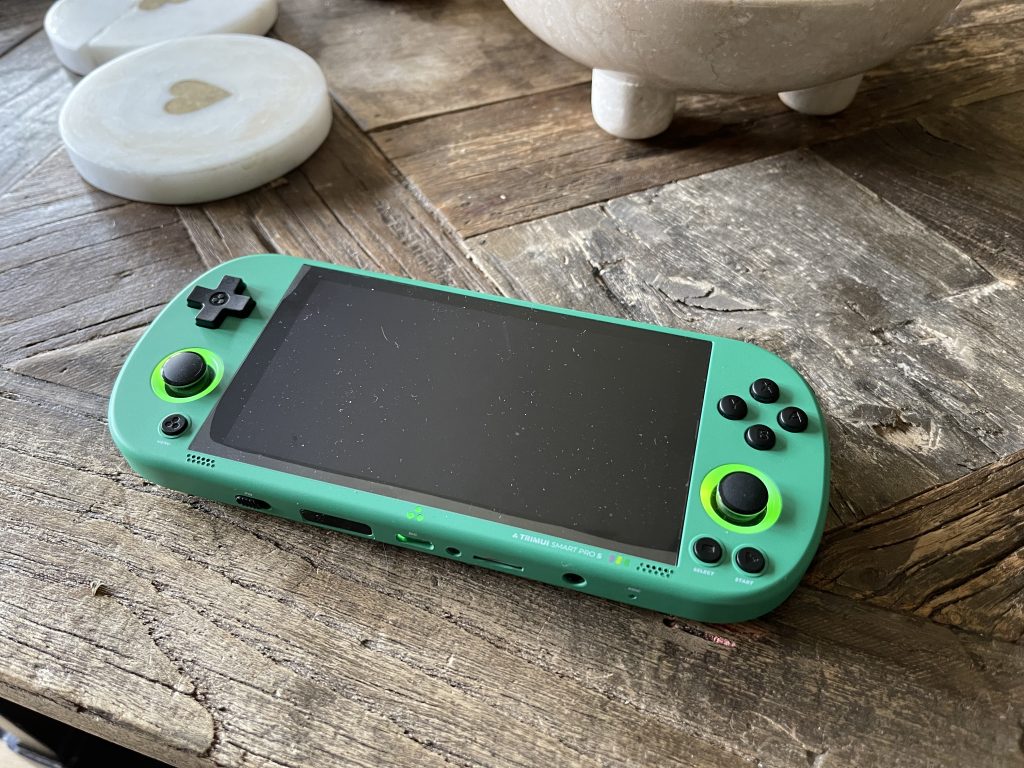
It sits in an odd spot, though. While it is pricier and therefore more capable than the R36S, it is still nowhere near a Steam Deck in terms of performance. Of course it is also different in purpose to both of those. Whether it earns a spot on your shelf or backpack is what I set out to test.

What I Want From a Handheld Like This
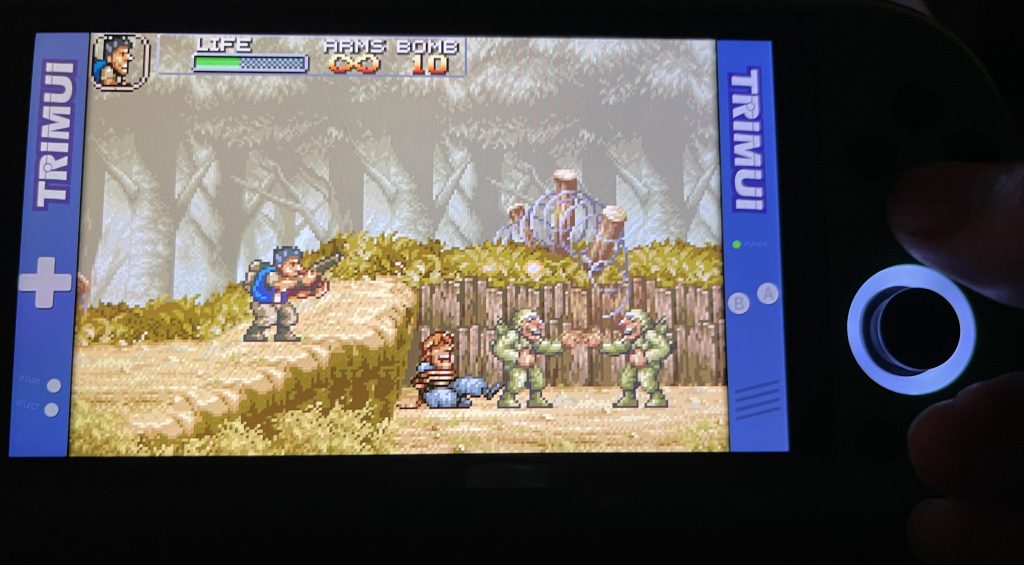
Worth repeating right up front, because it colours everything that follows. My taste skews pre-3D: pixel art, arcade boards, the sort of games I enjoyed before I lost all interest in gaming when everything went polygonal. Metal Slug, R-Type, OutRun. I want a screen that flatters that stuff, controls that don’t fight me over a longer session, and to spend my time playing rather than fighting the thing into working, especially when my main computer is a Mac.
Keep that in mind. If your go-to game library is all 3D and your desktop runs Windows, you’ll see some of this differently, and I’ll try to flag where.
Trimui Smart Pro S Hardware Overview
- Allwinner A523 (also listed as T527, same chip)
- 8 cores Cortex-A55 at 2.0GHz
- ARM Mali-G57 MC1 GPU at 740MHz
- 1GB LPDDR4x RAM
- 8GB internal eMMC storage
- 4.96″ 720p IPS touchscreen, fully laminated
- Active cooling fan
- TMR joysticks (no drift), L3/R3 support, 1mm taller than on the original Smart Pro
- Improved D-pad over the original Smart Pro
- 5000mAh battery, around 5 hours of gameplay
- WiFi (advertised as WiFi 6, comfortably over 25MB/s in practice for file transfers)
- Bluetooth (advertised as 5.4)
- Two USB-C ports, top is host (controllers, drives, keyboards), bottom is USB 3.0 for charging and SD card reader mode
- 3.5mm headphone jack, stereo speakers (2 × 1W), mono microphone
- Single vibration motor
- 18 × 8 × 1.7cm, 231g
Trimui Smart Pro S vs R36s: How they Compare
Specs don’t always tell the full story, but you can immediately see the CPU gets a speed boost and the screen gets a nice resolution bump too. But is it worth spending the extra bucks?
The R36S runs a Rockchip RK3326S which means four Cortex-A35 cores at about 1.5GHz with a Mali-G31 MP2 GPU. The Smart Pro S runs an Allwinner T527 (sometimes branded A523, same silicon) offering eight Cortex-A55 cores at 2.0GHz with a Mali-G57 MC1 GPU. That’s more than just a step up.
Cortex-A35 is ARM’s low-power line, and it’s designed for efficient battery-friendly handhelds. Cortex-A55 on the other hand is the standard line with about 20 to 25 percent more work per clock cycle, clocked a third higher, and there are twice as many of them. Bottom line, that’s roughly three times the CPU throughput.
The GPU jump could matter even more for the systems people actually want to run on the thing. Mali-G31 to Mali-G57 is a whole generation forward and roughly two to three times the graphics performance. That’s what unlocks systems like Dreamcast and PSP smoothly. The CPU gap is helps open up CPS3 and more demanding arcade machines.
That said, for 2D pixel-pushing emulation (NES, SNES, Mega Drive, CPS1, NeoGeo) the R36S’s is capable and you would not gain a lot from the upgrade. The Smart Pro S really makes sense the moment you cross into hardware the R36S can’t reach.
Form Factor Decisions: Widescreen Has a Point
The Smart Pro S is wide format, so instead of a modern Gameboy, it is shaped more like a PSP or a Switch, and it changes how some games play, not just how the thing looks and feels.
Running Ridge Racer or Lumines at full widescreen, on hardware shaped like the original PSP, is a proper full-circle moment. The PSP had a huge library most people never got through. UMDs were pricey, the hardware aged out, and the digital store is long gone. The Smart Pro S is about the best way left to go back to that library the way it was meant to look.
Games built for 4:3 (NES, SNES, arcade, PS1) however get black bars or stretching on this style of screen. The pillarboxed game area is still physically bigger than the R36S’s display, and CRT shaders at 720p can help make pixel art look great, but the bars are there and purists will clock them. If your library is mostly 4:3 stuff and a vertical Game Boy shape suits you, the R36S is the right choice. The Smart Pro S wins on screen quality, comfort over longer sessions, and the systems the R36S can’t reach.
Even though it’s a fair bit wider than the R36S, it does still go in a jacket pocket. At 225g it feels solid without being a brick. The horizontal shape is a lot kinder on old wrists past the half-hour mark than the vertical handhelds too.
Out of the Box
The box is not stuffed. You get the device, USB-C cable, and a reference sheet. Mine came with a pre-loaded SD card, which is an optional extra at purchase. You can buy the console alone or with a 64GB, 128GB, or 256GB card. If you’re buying one, the card matters, and more than you might guess.
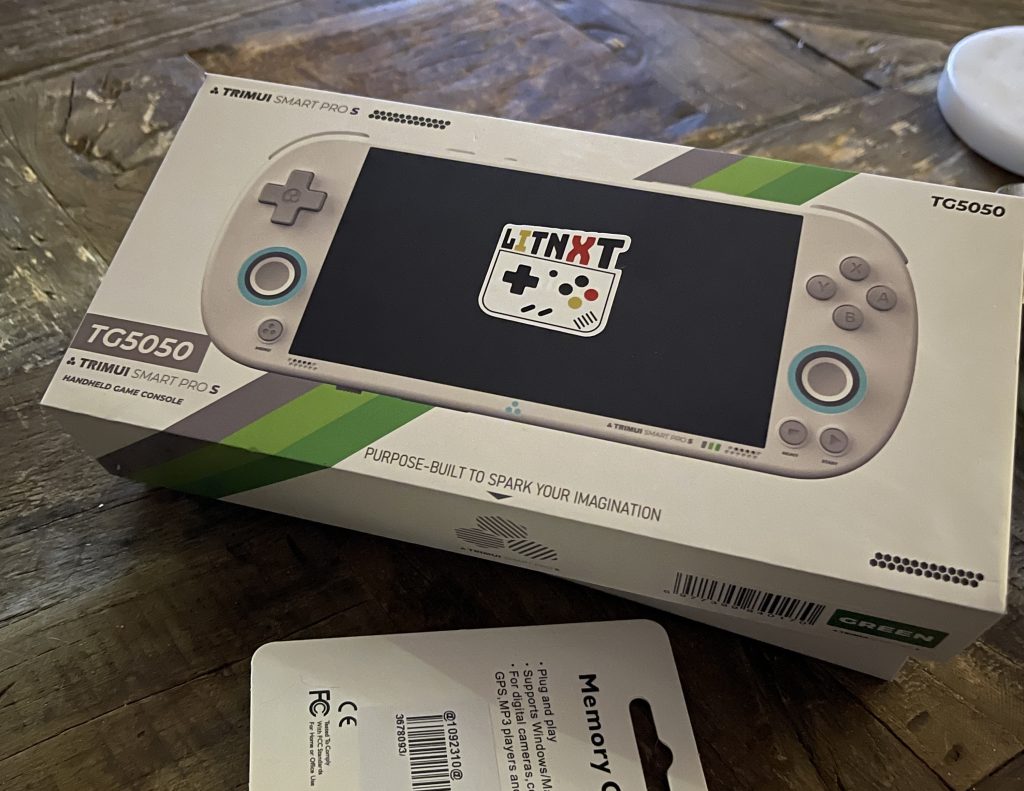
If your unit came with a bundled card, treat it as a starter and nothing more. Budget Chinese handhelds have a long history of shipping with generic, slow microSD cards that cause stuttering, slow loads, and the odd corruption. The original Smart Pro had exactly this problem. Before you blame the hardware for any performance issue, swap the bundled card for a branded Samsung or SanDisk. It’s the single most common fix for “my games run badly” complaints across the whole budget handheld category.
My review unit came with a SanDisk Ultra 64GB. Noticeably better, no lag even on bigger game loads, though the largest files still take a beat to come up. Keep in mind the file sizes ramp up quite a lot when you leave 16-bit world, so check out the kind of systems and games you want to play before deciding on which capacity is right for you. As a point of comparison, a “best of” Neo Geo game pack I checked out was more than 4GB alone.
About that Reference Sheet
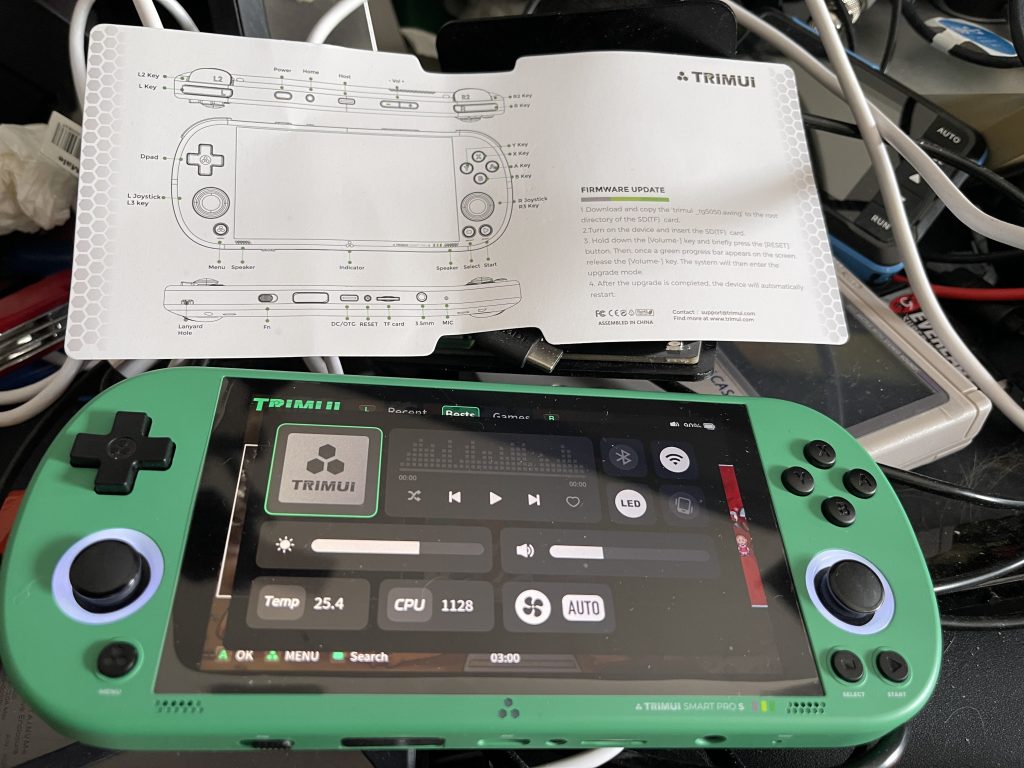
The box includes a small fold-out sheet mapping the buttons and hotkeys. It also tells you to update the firmware. Good advice, but resist doing it before you’ve had a first play. Get a feel for the stock experience first. More on firmware, and where to actually find it, further down.
First Impressions: Build and Ports
Before you switch it on, do a slow tour of the edges. There’s more going on here than on most budget handhelds.
The top edge has a USB-C host port. The bottom edge has a separate USB-C charging port with OTG. They are not interchangeable. The top port is for plugging things into the device such as USB controllers, USB drives, a keyboard. The bottom port is where your charging cable goes, and it also handles SD card reader mode for moving files around without pulling the card out.
The FN Switch
The small physical slide switch on the bottom edge marked FN is a DIP switch, a hardware toggle that holds regardless of software state. Slide it right (away from the FN label) and set it up in the OS under App > Fnkey Setting, and it enables CPU Performance Mode. You can also assign it to control LED behaviour, toggle silent mode, or turn on turbo fire globally.
It’s an unusual choice but a neat one, a hardware shortcut you don’t have to dig through menus for mid-game.
The Mystery Cover
Next to the FN switch on the bottom edge is an unlabelled black plastic piece. It isn’t on the diagram inside the box, which makes it immediately suspicious.
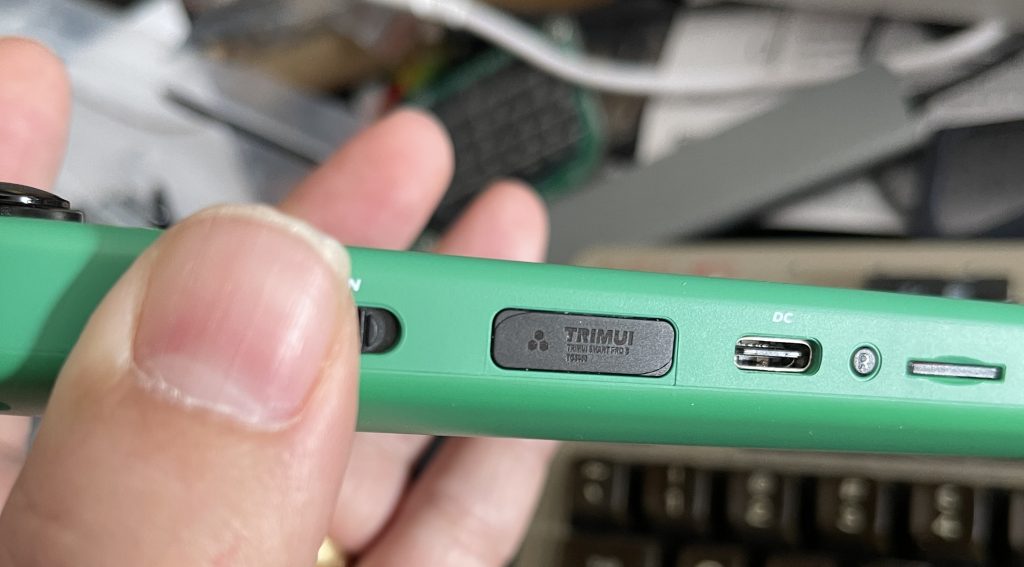
The community guesses is that it’s a blanking plate over a gap reserved for a possible future HDMI output. Whether that ever shows up in a revision or a higher-tier model is anyone’s guess, but the space and position line up with mini-HDMI. For now it does nothing. Worth knowing it’s there, and worth not prying it open.
Fan Exhaust
Trimui have made the fan exhaust a design feature rather than hiding it, which reads as a confident “yes, this has a fan, and that’s a good thing.” The original Smart Pro ran warm enough that heat was a common complaint. In use the fan is a soft whirr under sustained load and you’ll hear it if you listen for it, not otherwise.
First Boot and the Trimui Stock OS
My review unit came pre-configured and the stock OS loads into a clean dark interface with tabs across the top (Recent, Bests, Games) that you scroll with the shoulder buttons. It isn’t obvious at first, and there’s no manual to walk you through it, but ten minutes of poking around and the UI clicks. Everything is reachable. It just doesn’t hold your hand getting there.
Early on you’ll trip over a panel with live CPU speed, temperature, fan mode, brightness, volume, Bluetooth and WiFi toggles. Properly useful at a glance, the sort of thing you’d normally only get on custom firmware. At idle mine showed 25.4°C with the fan inaudible. It never got really warm in normal use and this is considering the UK was experiencing a heatwave as I type this.
WiFi That Just Works
The Smart Pro S joined my home WiFi straight away, my actual WiFi and not an old guest channel. 5GHz, no fuss, no dongle. The R36S has no built-in WiFi at all; online anything needs a USB adapter. On the Smart Pro S it’s just there, ready. That gets you automatic date/time sync, game artwork scraping, network play, and Moonlight streaming, none of it needing extra hardware.
That being said, a couple of times I did need to turn WiFi off and back on to get a connection. Might be a me problem, but thought I would mention it.
Getting Games On It: Here’s the Mac Problem
This is where it gets fiddly, and where most reviews skip over something that’ll annoy a fair chunk of buyers.
The Smart Pro S runs Linux internally. The SD card I got used a Linux ext4 filesystem which macOS can’t read or write natively. That affects USB storage mode, direct card readers, and every other approach that involves plugging the card into a Mac. You’ll see “The disk you attached was not readable by this computer.” Click Ignore. Do not click Initialize (wipes the card). Either way, nothing useful mounts, at least without downloading a workaround.
This isn’t a fault in the device. It’s Linux on hardware and it is probably aimed mainly at Windows users. But it does mean the standard advice you see everywhere, “just copy the ROMs to the SD card” doesn’t include you if you use a Mac.
The Mac Workflow
For Mac users the practical answer is KNULLI Scarab, covered in detail below. KNULLI’s data partition uses exFAT, which a Mac reads and writes natively, and it ships with a Samba network share that mounts straight in Finder. Once it’s set up, adding games on a Mac is drag and drop over WiFi. No cables, no pulling the card, and no additional drivers.
If you want to stay on stock firmware and you’re on a Mac, your only option is drivers or a Windows or Linux machine for card management. There’s no clean native Mac path on stock firmware as far as I can tell.
File Transfer Options
The directory structure is laid out cleanly with roms, bios, saves, cheats, screenshots, themes
If you are using the stock firmware on Windows:
- Pull the card and use a card reader (fastest)
- Enable USB Card Reader Mode via the App menu and connect via the bottom USB-C port
KNULLI (Mac or Windows):
- Mount
smb://knulliin Finder or Windows Explorer. Shows up as a network drive over WiFi. - SSH/SFTP via
ssh root@knulliwith passwordlinuxfor command line access
The ROM Question
The device plays ROM files, digital copies of games. Legally you’re expected to own the original media. In practice the community keeps archives for preservation, though the landscape shifts constantly. Myrient, one of the more reliable archives, closed in March 2026. Reddit’s r/SBCGaming and r/Roms are the current starting points for finding where the conversation has moved to.
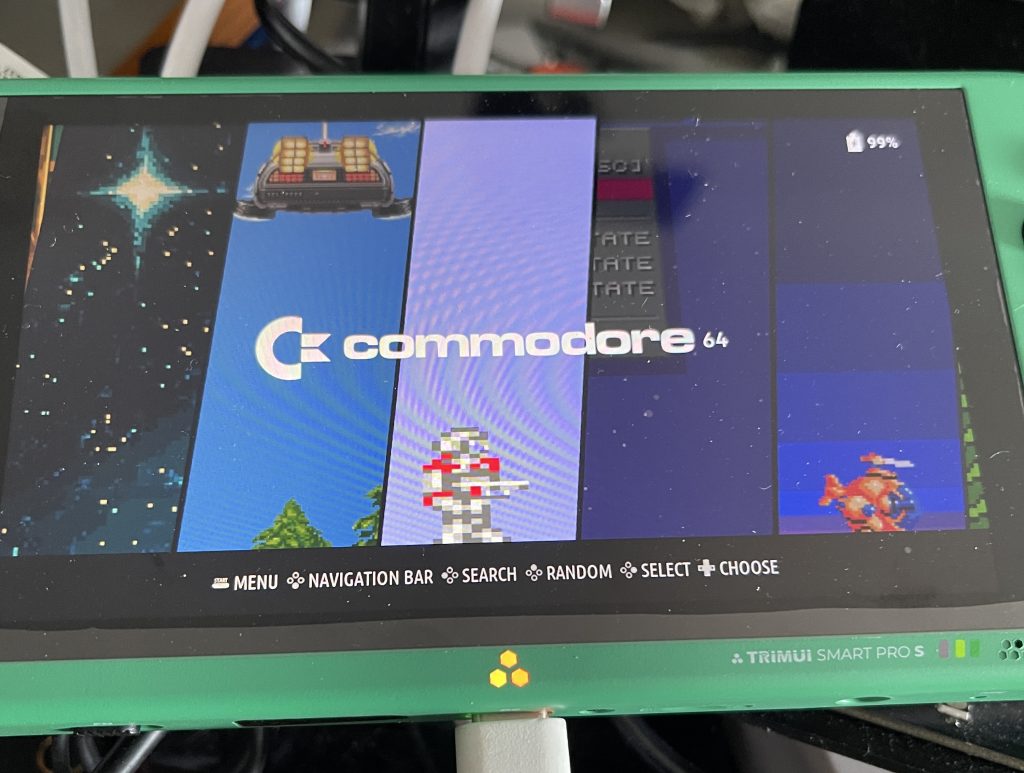
PortMaster is worth installing whatever your ROM situation. It’s a community app of free, legal ports of open-source and indie games like Cave Story, Quake, OpenBOR, plenty more.
Smart Pro S Firmware: Stock, Updated, or Community?
The reference sheet in the box tells you to install the trimui_tg5050 firmware. What it doesn’t tell you is where to find it. The official trimui.com support page currently lists TG5040 firmware only, which is the wrong device.
Correct locations for the Smart Pro S:
- Firmware: github.com/trimui/firmware_smartpro_s/releases
- SD Base Package: trimui.com/pages/trimui-smart-pro-s-sd-base-package
These are two different things. The firmware is a small .awimg file that updates the OS itself. The SD Base Package is the full SD card contents: emulator cores, RetroArch, folder structure. Trimui have specifically warned against mixing assets between the TG5040 and TG5050. The hardware is different enough that the wrong base package causes problems.
Current stable release as of writing: v1.0.1-20251218.
Firmware Options
Stock as-shipped. Usable, but probably not the latest version. Fine for a first play.
Updated stock firmware. Straightforward on Windows. Mac users can’t copy the .awimg file to the ext4 SD card without extra software. See the Mac workflow above.
CrossMix OS. The community favourite on the original Smart Pro, adding 100+ emulators and PortMaster on top of the familiar stock UI. When I got my unit, TG5050 support was still in development. It appears that might have changed so check the CrossMix GitHub.
KNULLI Scarab. A Batocera/EmulationStation fork with full TG5050 support, OTA updates, and Samba built in. Released May 2026. This is the path I’d point most people at, and the only clean option for Mac users.
Installing KNULLI Scarab on the Smart Pro S
KNULLI Scarab added official TG5050 support in May 2026. It’s listed as early access for the Smart Pro S specifically, so expect rough edges, but it works and it’s actively developed.
Installation:
- Download the Smart Pro S image and look for the file with
T527andTRIMUI-SMART-PRO-Sin the name. T527 is the same chip as the Allwinner A523, just Allwinner’s internal name. - Flash it with Raspberry Pi Imager or Balena Etcher. Both work great on Mac.
- Put the card in the device.
- Hold the power button for a full 15 seconds. A normal press did nothing for me and it looked dead. Holding for 15 seconds has become routine for me when I have locked up the system.
- The KNULLI Scarab boot screen appears, then “Extending the Bridge to Zeal…“, which is the filesystem expansion on first boot. Leave it alone while it works for ~3 to 5 minutes.
- EmulationStation launches.
First boot on Mac, connecting and adding games:
- Join your WiFi in KNULLI’s network settings
- In Finder: Go > Connect to Server >
smb://knulli - The share mounts: roms, bios, saves, cheats, screenshots, themes
- Drop ROMs into the right system subfolder. Every folder has a
_info.txtsaying which ROM sets and file formats it wants. - In EmulationStation: press Start > Game Settings > Scrape to pull artwork
SSH works straight away too: ssh root@knulli (default password: linux, unfortunately does not seem you can choose your own).
What KNULLI comes with out of the box:
- Doom (prboom port), free, legal, runs immediately
- Classic Kong, 2048, MrBoom, Fix It Felix Jr.
- PortMaster pre-installed, one button from hundreds of free ports
- Full EmulationStation, familiar to any RetroPie user
- OTA updates, no reflashing for future versions
If you’ve ever set up a Raspberry Pi retro machine, KNULLI feels like home. Same interface, same hotkeys, same menu structure. No learning curve.
What the Smart Pro S Plays Well
This is judged against the taste I owned up to at the top, so let’s get into the games.
NeoGeo and Arcade (FBNeo)
Metal Slug runs perfectly. So does every CPS1 title, every SNES game, every NeoGeo fighter. The catch: so does the R36S. For pure pixel-era 4:3 arcade content, the hardware gap between these two is irrelevant. You’re not buying the Smart Pro S for Metal Slug.
CPS3, Where the Gap Shows
Street Fighter III: 3rd Strike is CPS3, and this is where the A523 makes a difference. The R36S can’t handle CPS3 comfortably. The Smart Pro S runs it really well. If you reckon 3rd Strike is the best Street Fighter, that matters.
OutRun, a Sound Test
While I tend to respect those around me and run my games on silent, OutRun is my audio benchmark. When I say Outrun though in reality it’s a tricky one because there are several different versions. The arcade original uses a Yamaha YM2151 with PCM samples. The Mega Drive version uses the YM2612 FM chip, the one a lot of people grew up with. The PSP version (OutRun 2006: Coast to Coast) has a remixed soundtrack and runs natively in 16:9, the shape this device was built for. Running all three on the same device tells you everything about emulation accuracy and audio fidelity. The FM detail lives in the headphone output, so test both speakers and headphones.
PSP Library
For Sony fans, the Smart Pro S is the right device to go back to the PSP library, not just on capability but physically. PSP games at native 16:9 on hardware shaped like a PSP, in your hand, is what these games were built for. Lumines, Ridge Racer, Castlevania: Dracula X Chronicles, Crisis Core, Daxter. A library that got expensive on original hardware and then vanished when the store closed. Most of it runs well here. Heavier titles may want a configuration tweak or two.
Smart Pro S Performance Ceiling
The Smart Pro S handles everything up to and including Dreamcast, PSP, and N64. These aren’t aspirational claims. Crazy Taxi runs at a stable 60fps. N64 is solid without needing custom firmware.
It does not do GameCube or PS2 well, at least in my testing. Don’t buy it expecting them.
The ceiling, until emulators deliver new tricks, seems to be roughly Dreamcast and PSP. That covers a lot of gaming history, though, roughly 1977 to 2007 – If your library falls in that range, the Smart Pro S covers it handily.
Smart Pro S vs R36S vs Steam Deck
So now I have, in addition to Raspberry Pi and FPGA systems, three devices I can pick up and play:
R36S (~$45). Pure retro, vertical Game Boy shape, 4:3 native screen, no built-in WiFi, realistically tops out around 16-bit and then some. Covers maybe 80% of the pre-3D library perfectly with the right firmware and emulator choice. Costs less than an AAA release on Steam.
Smart Pro S (~$90-100). PSP-era revival, widescreen, horizontal, WiFi 6 built in, Dreamcast and PSP in the bag. The step up when the R36S hits its limits, or when you want the right screen shape for the right games.
Steam Deck (~$400+ even before memory chip drought). Not really “pocket sized” or meant to compete with either on retro, though of course it is more than capable. It’s a compact PC that is for modern gaming, indie titles, and the full Steam library. Judging it on emulation alone sells it short.
The progression has some logic to it: start with an R36S, see if you hit the limits, move to the Smart Pro S, hit a different ceiling, then decide whether you need a Steam Deck or whether you just want to play another game of Crazy Taxi.
The Smart Pro S as a Full Linux Machine
Something most reviews miss is the Smart Pro S running KNULLI is a Linux computer in your pocket.
SSH works out of the box. System info over the terminal reports the board correctly as trimui-smart-pro-s, Linux 5.15.147, aarch64, 960MB RAM, display at 1280×720. The top USB-C host port takes USB keyboards. The data partition is exFAT and mounts on any OS.
Whether there’s a future HDMI port hinted by that blanking plate, we’ll see. But there’s some Pi-shaped cyberdeck potential there, a pocket Linux box with a proper keyboard, SSH, and a 5-inch screen, could be worth a whole article on its own.
So, Who Should Buy the Smart Pro S?
Buy it if you:
- Need what the R36S can’t do well: CPS3, Dreamcast, PSP
- Want to go back to your 16:9 game library the way it was meant to be played
- Care about the improved screen quality or CRT shaders for pixel art
- Are a Mac user happy to run KNULLI instead of stock firmware
- Have the extra budget and are willing to pay for the upgrade.
Don’t buy it if you:
- Play only pre-PS1 content. The R36S covers all that and for half the price.
- Expect GameCube or PS2 with good frame rates. Not really happening on this hardware.
- Want a 1:1 Nintendo Switch replacement.
- Want plug-and-play on a Mac with stock firmware.
Verdict
So, do I rate it? I do!
The Smart Pro S is a real step up over the original Smart Pro and a logical one up from the R36S, not because it makes the R36S obsolete (it doesn’t), but because it covers it’s own, different ground.
The R36S is still the one I’d buy someone for pure pixel-era 4:3 gaming fun at minimum cost. The Smart Pro S is the one for everything from that era up to and including the PSP, in a shape that actually suits those games, with a screen you can enjoy staring at.
There is that asterisk I mentioned at the top which is the Mac story, and it’s worth spelling out. Out of the box the stock firmware is effectively unusable, at least on my Mac, for file management. KNULLI Scarab fixed that completely, and it’s the better firmware IMO anyway: EmulationStation, Samba, PortMaster pre-installed, OTA updates. Mac or not, flash KNULLI first and I don’t think you will look back.
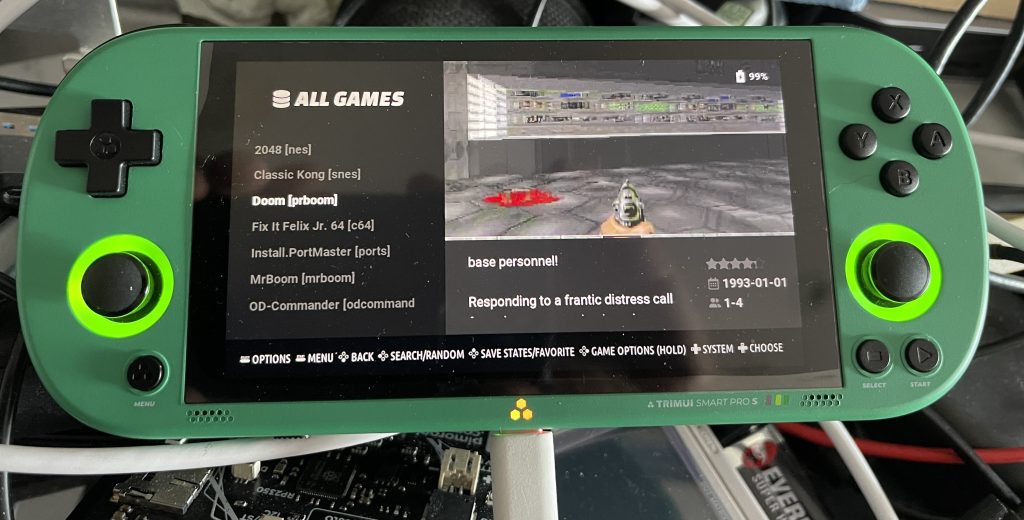
Like the R36S before it, this little guy has a way of getting picked up even though I’ve got “better” options on the shelf. It runs Doom better than my old DX2-66 ever did, and for something that costs less than I spend weekly on petrol right now, that’s not a bad place to start.
Thanks again to LITNXT for providing the TG5050 for this review! Check out their store if you are in the market for a great portable games console. Those are affiliate links, so I get a small cut if you buy through them, at no extra cost to you.
 Zero Lines Maze: What the 8-Bit Guy’s One-Liner Can Still Teach Us